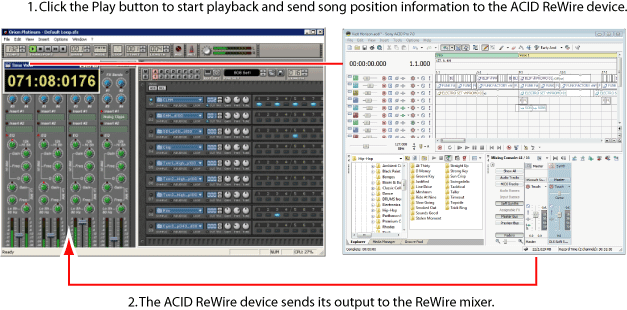
When Acid software is used as a ReWire device, the output from your
Acid mixer is output to a ReWire mixer application.
After you add the Acid synth to a ReWire mixer application, the mixer
application sends song position data to the Acid synth, which sends its
audio back to the ReWire mixer. To see an example, click here.
Acid acts as a ReWire 1.0 device.
NOTE Notes:
You must
start your ReWire mixer application before starting Acid software.
When Acid
software is connected to a ReWire mixer application, the Acid project
will automatically use the mixer application's bit depth and sample rate.
Saving the Acid project in ReWire mode will not overwrite the project's
original bit depth and sample rate.
If a ReWire
mixer application starts Acid software, that Acid window will start in
ReWire mode and cannot be switched from ReWire mode. If a ReWire mixer
connects to an existing Acid window, that window will run in ReWire mode,
and you can switch out of ReWire mode if necessary. If you exit that instance
of the software and start Acid software again, the new instance will start
in ReWire mode, and you can switch out of ReWire mode if necessary. You
can switch out of ReWire mode by choosing a new setting from the Audio device type drop-down
list on the Audio Device
tab of the Preferences dialog.
The Acid
Tempo control
below the track list is not available in ReWire Device mode. Tempo information
is provided by the ReWire mixer application.
If a ReWire
mixer application includes a tempo map, video and long one-shot tracks
in your Acid project will lose synchronization with looped material. Using
Acid software as a ReWire mixer
(or in an Acid project without ReWire) will resolve the issue.
Any effects
chain that includes non-in-place
plug-ins will be automatically bypassed to prevent synchronization problems
with the ReWire mixer application. The effects chain icon will be displayed
as a . Apply the plug-ins within the ReWire mixer application.
Before
rendering from a ReWire mixer application, turn off the Acid metronome,
or the metronome will be included in the rendered output.
If the
mixer has a Render in Real-Time option, this mode may reduce the possibility of drop-outs
from the Acid ReWire device while rendering.
Setup information follows for several common ReWire mixer applications.
This information is intended to help you get up and running with Acid
software as a ReWire device. For the most up-to-date information about
using each ReWire mixer application, please refer to the manufacturer's
documentation.
From the Devices menu, choose Acid Pro2026. A dialog
is displayed to list the available Acid mixer outputs.
Select the Power
button for each Acid mixer output you want to send to Nuendo.
TIP Use the Advanced
Audio Configuration dialog for the ReWire Device Driver to specify
the number of stereo and mono ports the Acid ReWire device will expose
to the ReWire mixer.
Start Acid software.
The software will detect that Nuendo is running as a ReWire mixer and
will start in ReWire device mode.
Open an Acid project.
Use the Acid or Nuendo/Cubase
transport controls to start playback.
Your Acid project will follow playback position and tempo information
from the Nuendo/Cubase project.
Select the Settings tab at the top
of the Tracktion window.
Click the plugins
heading on the left side of the tab.
Ensure the enable rewire radio button is selected.
Open a project.
Add a ReWire filter to the
project:
Drag the new filter button (at the
top of the Tracktion window) to a filter box on the right side of a track.
A menu is displayed to list the available filters.
Click ReWire Device heading on the
left side of the tab.
The ReWire filter is added to your track.
Use the ReWire Filter tab
at the bottom of the Tracktion window to set up your ReWire filter:
Click the choose device button and choose Acid Pro2026from the menu.
Use the output channels to use controls to choose which Acid mixer outputs will
be sent to Tracktion. Click ReWire Device heading on the left side of the tab.
TIP Use the Advanced
Audio Configuration dialog for the ReWire Device Driver to specify
the number of stereo and mono ports the Acid ReWire device will expose
to the ReWire mixer.
Leave the input channels for MIDI controls at their default settings. The Acid Pro2026 ReWire device will not accept MIDI input.
Click the launch editor button in the ReWire Filter tab to start Acid software
in ReWire device mode.
Switch to the Acid window
and open the project you want to use.
Switch to the Tracktion window
and use the Tracktion track controls to adjust the levels of the Acid
mixer outputs.
You can use Tracktion or Acid
transport controls to start and stop playback or set a loop region.
Your Acid project will follow playback position and tempo information
from the Tracktion project.
From the Sonar Insert
menu, choose ReWire Device,
and then choose Acid Pro2026 from the submenu. The Insert DXi Synth Options dialog is
displayed.
In the Insert DXi Synth Options dialog,
select the appropriate check boxes to indicate how you want to use the
Acid Pro ReWire device in your Sonar project:
Item
Description
Create These Tracks:
MIDI Source Output
This check box has no effect because the
Acid ReWire device does not send MIDI data to the ReWire mixer.
Create These Tracks:
First Synth Output (Audio)
Select this check box if you want to add
a single audio track to your Sonar project that contains the master outputs
from the Acid mixer.
Create These Tracks:
All Synth Outputs (Audio)
Select this check box if you want to add
a separate audio track to your Sonar project for each of the outputs from
the Acid mixer.
Open These Windows: Synth
Property Page
Select this check box if you want to start
Acid software when you close the dialog.
Open These Windows: Synth
Rack View
Select this check box if you want to open
the Sonar Synth Rack View window when you close the dialog.
TIP Use the Advanced
Audio Configuration dialog for the ReWire Device Driver to specify
the number of stereo and mono ports the Acid ReWire device will expose
to the ReWire mixer.
Click the OK
button.
Sonar adds Acid ReWire device tracks to your Sonar project and starts
Acid software in ReWire device mode.
Switch to the Acid window
and open the project you want to use.
Switch to the Sonar window
and expand the Acid ReWire device tracks in your Sonar project.
Use the Acid ReWire device
tracks to configure the Acid ReWire device:
Click the Output To drop-down list and choose the output where you want to send
the Acid ReWire device track output.
Use the track FX controls to add effects
to the Acid sequencer tracks.
Use the track volume controls to adjust
the level of the Acid project.
You can use Sonar or Acid
transport controls to start and stop playback or set a loop region.
Your Acid project will follow playback position and tempo information
from the Sonar project.
Click the Session View button to switch to session view.
Add an audio track to your
Live project. This track will receive the audio output from the Acid sequencer.
Click the Show/Hide In/Out Section button to display the in/out section in the Live
mixer.
Use the Audio From controls in the in/out section on the new track to configure
the Acid ReWire device:
Click the Input Type drop-down list and choose Acid Pro2026.
Click the Input Channel drop-down list and choose which Acid mixer outputs will
be sent to the Live track.
TIP Use the Advanced
Audio Configuration dialog for the ReWire Device Driver to specify
the number of stereo and mono ports the Acid ReWire device will expose
to the ReWire mixer.
Start Acid software.
The software will detect that Ableton Live is running as a ReWire mixer
and will start in ReWire device mode.
Open an Acid project.
Switch to the Live window
and use the Live track controls to adjust the levels of the Acid mixer
outputs.
Use the Live transport controls
to start playback.
Your Acid project will follow playback position and tempo information
from the Live project.
From the Orion Insert menu,
choose ReWire,
and then choose Acid Pro2026 from the submenu.
Orion starts Acid software in ReWire device mode and adds the Acid
mixer outputs to the Orion Mixer window.
TIP Use the Advanced
Audio Configuration dialog for the ReWire Device Driver to specify
the number of stereo and mono ports the Acid ReWire device will expose
to the ReWire mixer.
Switch to the Acid window
and open the project you want to use.
Switch to the Orion 5.0 window
and use the Orion Mixer window to control the levels of the Acid mixer
outputs.
Use Orion 5.0 to start and
stop playback or set a loop region (Orion software ignores playback, tempo,
and loop region requests from ReWire devices).
Your Acid project will follow playback position and tempo information
from the Orion project.
From the ProTools File menu, choose
New Track. The
New Track dialog is displayed.
Choose Aux. Input from the Track Type drop-down list. (On ProTools TDM systems, choose Audio Track.)
Click the Create
button.
In the Mix window, click the
Inserts button on the auxiliary input or audio track, choose Plug-In
from the menu, choose Instrument
from the submenu, and then choose Acid Pro2026 from the submenu. On ProTools TDM systems, the ReWire RTAS
plug-in can only be added to an audio track.
ProTools starts Acid software in ReWire device mode and adds the
Acid Pro ReWire device as an input on the ProTools Mix window.
Select the Acid Pro ReWire
device on the ProTools Mix window. The RTAS Plug-In dialog displays <no output> for
the Acid Pro ReWire device. Click the button and choose which Acid
mixer outputs will be sent to the ProTools track.
TIP Use the Advanced
Audio Configuration dialog for the ReWire Device Driver to specify
the number of stereo and mono ports the Acid ReWire device will expose
to the ReWire mixer.
Switch to the Acid window
and open the project you want to use.
Switch to the ProTools window
and use the Mix window to control the levels of the Acid mixer outputs.
You can use ProTools or Acid
transport controls to start and stop playback or set a loop region.
Your Acid project will follow playback position and tempo information
from the ProTools project.
 .
.
 . Apply the plug-ins within the ReWire mixer application.