By default, A new envelope will contain a single envelope
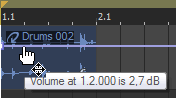
point. If you want to adjust the overall level of an envelope, drag the
envelope up or down. A floating ToolTip will show you the envelope's current
setting:
If an envelope has multiple points, you can drag each point,
or you can drag envelope segments up or down.
TIP Tips:
If
snapping is enabled, envelope points will snap to
snap points. Hold Shift to temporarily suspend snapping (press Shift after
clicking).
Hold
Ctrl while dragging an envelope point or segment to adjust the value in
fine increments without changing the envelope points' timeline positions.
Hold
Ctrl+Alt while dragging an envelope point or segment to adjust the value
in normal increments without changing the envelope points' timeline positions.
Hold
Alt while dragging an envelope point to move the point's timeline position
without changing its value
With
the Envelope tool ,
you can drag along the timeline to select multiple envelope points in
the selected track.
To create more complex envelopes, you will need to add points.
To add an envelope point, double-click the envelope. A new envelope point
will be added which can be dragged and positioned as necessary.
To delete a point, right-click it and choose Delete
from the shortcut menu.
To create an envelope quickly, you can draw freehand envelope
curves in the timeline.
With the Draw ,
Envelope , or Time Selection tool active, hover over an envelope.
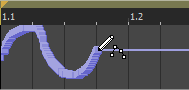
Hold Shift, and then click
and drag over the envelope. The cursor is displayed as a .
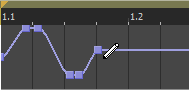
As you drag, a trail of envelope points is created.
Release the mouse button when you're finished
drawing.
If the Smooth and thin automation data after recording or drawing check box is selected
on the External Control &
Automation tab of the Preferences dialog, the number of envelope points
will be reduced when you release the mouse.
You can adjust the fade curve for each envelope segment
individually. To change the fade curve, right-click an envelope segment
and choose a command from the shortcut
menu.
Create a time
selection that contains the envelope points you want to copy.
Click the envelope you want
to copy.
TIP
If
the envelope isn't displayed, you can right-click the track, choose Show Envelopes from
the shortcut menu, and then choose an envelope from the submenu.
From the Edit menu, choose
Copy.
Select the envelope where you want
to paste the envelope points:
Click within a track
to select it.
Insert an envelope if needed.
Click to select the envelope
where you want to paste the selected points.
Click to position the cursor
where you want the envelope to start.
From the Edit menu,
choose Select All
to create a time selection that matches the length of your project.
Click the envelope you want
to copy.
TIP
If
the envelope isn't displayed, you can right-click the track, choose Show Envelopes from
the shortcut menu, and then choose an envelope from the submenu.
From the Edit menu, choose
Copy.
Select the envelope where you want
to paste the envelope points:
Click to select the envelope
where you want to paste the selected points.
Click Go to Start if you want the envelope to appear exactly
as it was in the original track, or click to position the cursor where
you want the envelope to start.
 , Envelope
  , or Time Selection
  tool is selected, you can add, remove, or
adjust envelope points.
tool is selected, you can add, remove, or
adjust envelope points.
 .
.


 if you want the envelope to appear exactly
as it was in the original track, or click to position the cursor where
you want the envelope to start.
if you want the envelope to appear exactly
as it was in the original track, or click to position the cursor where
you want the envelope to start.