MIDI Track Controls
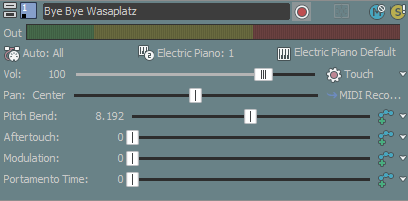
The controls in the track list allow you to adjust track volume, panning,
and MIDI controller values.
TIP Tips:
-
MIDI track
controls are duplicated on MIDI
track channel strips in the Mixing Console window.
-
To move
faders and sliders in fine increments, hold Ctrl while dragging the control.
Right-click the track
header, choose Color
from the submenu, and then choose the color you want to use to display
the track and MIDI data on the timeline.
If you've changed the
color of any of a track's clips,
changing the track color will not update the color of those clips.
Drag a track's bottom
border to set its height. If you want to set a track's height as the default
height for new tracks, right-click within the track list and choose Set Default Track Properties
from the shortcut menu.
Click Minimize  to minimize a track vertically.
Click Maximize to zoom in vertically so a track fills the track view.
After minimizing or
maximizing a track, click the Minimize or Maximize button again to return a track to its previous height.
Track height keyboard shortcuts
-
Press Ctrl+Shift+Up
Arrow or Down Arrow to change the height of all tracks at once.
-
Press `
to minimize all tracks. Press again to restore tracks to their previous
height.
-
Press Ctrl+`
to return all tracks to the default height.
-
Double-click the track name
and type a new name.
-
Press Enter
to save the name.
Right-click a track header, choose Pitch Shift Track from the shortcut menu, and then choose a command from
the submenu to change the pitch of all events on a track. The event-specific
pitch shift is calculated after the project key and the track’s pitch
shift.
TIP When a track is selected,
press + and - on the numeric keypad to change track pitch.
Click the Arm for Record button  on a MIDI track to prepare it for recording.
When you click the Record
button on the main
transport bar, all armed MIDI tracks will begin recording.
For more information about recording MIDI, see Recording MIDI.
Click the Toggle Freeze button  on a MIDI track to convert a MIDI track to .wav file, effectively taking
your soft synths offline and conserving processing and disk resources.
on a MIDI track to convert a MIDI track to .wav file, effectively taking
your soft synths offline and conserving processing and disk resources.
For more information about freezing MIDI tracks, please
see Freezing MIDI Tracks.
Click the Mute
button  to prevent
a track from being played in the mix. Click the Mute
button on additional tracks to add them to the mute group. To unmute
a track, click the Mute
button again.
to prevent
a track from being played in the mix. Click the Mute
button on additional tracks to add them to the mute group. To unmute
a track, click the Mute
button again.
Muting or unmuting a track
-
Deselect the Automation Settings button  to toggle trim mode.
-
Click the Mute
button .
TIP When you have a group
of tracks muted, hold Ctrl while clicking the Mute
button on an unmuted track to remove all other tracks from the mute group.
Hold Ctrl while clicking the Mute button on a muted track to reset all Mute
buttons.
Adjusting mute automation
When you select the Automation Settings button , the Mute
button is displayed as  , and you can use the button to edit mute automation.
Click the Solo button  to mute all unselected tracks. Click the Solo
button on additional tracks to add them to the solo group. To remove a
track from the solo group, click its Solo
button again.
to mute all unselected tracks. Click the Solo
button on additional tracks to add them to the solo group. To remove a
track from the solo group, click its Solo
button again.
TIP Hold Ctrl while clicking
a Solo
button to solo a single track and remove all other tracks from the solo
group.
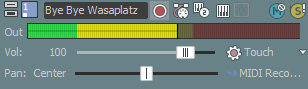
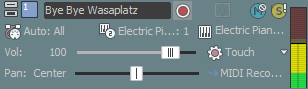
During playback, a meter is displayed in the track header
to monitor note-on velocities.
|
|
Horizontal meters
|
|
|
Vertical meters
|
Right-click the meters and choose a command from the shortcut
menu to adjust the display of the meters. This shortcut menu allows you
to set the meter's response, hold peaks and valleys, toggle vertical display,
or turn output meters off.
The Volume
fader in the track header can function as a trim control that adjusts
the overall volume of the track, or it can adjust track volume automation
settings.
If the track doesn't have a volume envelope, the fader sets
the volume of the channel (0 to 127).
If the track has a volume envelope, the fader behaves as
a trim control that is added to the volume automation
settings so your envelope is preserved, but with a boost or cut applied.
For example, setting the trim control to -6 has the same effect as decreasing
every envelope point by 6. The control range is -127 to 127, but the overall
volume of the MIDI track is bound at 0 and 127.
TIP When adjusting the mix of your tracks, remember to
look at the meters on the Mixing Console.
Because you are adding the volumes of all of the tracks together, it is
easy to clip the audio output. Make sure that the meters never display
the red Clip indication during playback.
WARNING
Not all VST instruments use standard MIDI
control mappings for volume and pan envelopes.
You can use the Output Settings tab in the MIDI
Track Properties window to override the default envelope: right-click
the controller you want to use and choose Use as Track Volume or Use as Track Pan from the shortcut menu.
Adjusting the volume trim level
-
Deselect the Automation Settings button
to toggle trim mode.
-
Drag the Vol fader to control how loud a track is in the mix.
A value of 0 means that the track is played with no boost or cut. Dragging
the fader to the left cuts the volume; dragging to the right boosts the
volume.
You can hold Ctrl while dragging a fader to adjust the setting in finer
increments, or double-click the fader to return it to 0
dB. If multiple tracks are selected, all selected tracks are adjusted.
Adjusting the volume automation level
When you select the Automation Settings button ,
the fader thumb is displayed as a  , and you can use the control to edit volume automation.
The Pan
slider in the track header can function as a trim control that adjusts
the overall position of the track in the stereo field, or it can adjust
track pan automation settings.
If the track doesn't have a pan envelope, the slider sets
the pan for the channel (100% L to 100% R).
If the track has a pan envelope, the slider behaves as a
trim control that is added to the pan automation
settings so your envelope is preserved, but with a boost or cut applied.
For example, setting the trim control to -6 has the same effect as decreasing
every envelope point by 6. The control range is -127 to 127, but the overall
pan value is bound at 0 and 127.
WARNING
Not all VST instruments use standard MIDI
control mappings for volume and pan envelopes.
You can use the Output Settings tab in the MIDI
Track Properties window to override the default envelope: right-click
the controller you want to use and choose Use as Track Volume or Use as Track Pan from the shortcut menu.
Adjusting track panning trim levels
-
Deselect the Automation Settings button
to toggle trim mode.
-
Drag the Pan
slider to control the position of the track in the stereo field: dragging
to the left will place the track in the left speaker more than the right,
and dragging to the right will place the track in the right speaker.
You can hold Ctrl while dragging the slider to adjust the setting in
finer increments, or double-click the slider to return it to the center.
If multiple tracks are selected, all selected tracks are adjusted.
Adjusting the track panning automation level
When you select the Automation Settings button ,
the Pan slider
handle is displayed as a , and you can use the control to edit pan automation.
Click the MIDI Input button and choose a command from the menu to set the track's
input device and channel for recording MIDI.
TIP If you want to select multiple input channels,
hold Ctrl and select additional channels from the MIDI Channel submenu.
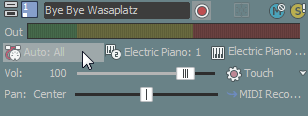
FIGURE This track is set to accept input from any MIDI device.
|
Item
|
Description
|
|

|
Auto Input
|
Uses automatic input routing. When this command
box is selected, the focus track will accept input from any MIDI input
device.
TIP Use Auto Input when you want to record multiple
controllers simultaneously. For example, with Auto Input selected, you could record
a MIDI keyboard and bass pedal to a single track.
|
|

|
Input Off
|
Turns off MIDI input to the track.
|
|

|
Hardware Input Port List
|
Displays the devices that are selected in the
Make these devices available for MIDI input list on the MIDI tab of
the Preferences dialog.
Choose the specific device you want to use to
send MIDI to the track.
NOTE
You must choose a specific input port to use MIDI input filters.
|
|

|
Soft Synth Input Port List
|
Displays the available soft synths in your project.
Choose the soft
synth you want to use to send MIDI to the track.
Use this setting to record the output of MIDI plugins like step sequencers or arpeggiators. Read more under Using MIDI plugins.
|
For more information about recording MIDI, see Recording MIDI.
Click the MIDI Output button on the track header and choose the soft synth or
MIDI device and channel you want to use to play MIDI data on the track.
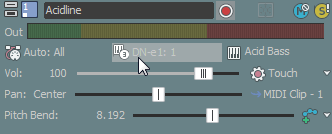
FIGURE This track is sending MIDI to port 1 on the DN-e1 soft synth.
Each MIDI track can be played through any VSTi or
ReWire 2.0 soft synth bus control
in the Mixing Console window, or external MIDI port.
For more information about routing MIDI tracks, see Routing Tracks to Soft Synths or MIDI Devices.
TIP If your track is routed to an external MIDI
port, you can load a device-specific program
map. When you use a program map, the MIDI Output button will display the device name, and the Program
button  will display the device's patches.
The Program button in the track header displays the
program (voice or patch) that will be used to play MIDI data on the track.
You can set the voice used to play the entire track, or you can add keyframes
to add program changes.
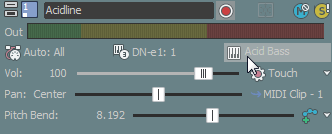
TIP If your track is routed to an external MIDI
port, you can load a device-specific program
map. When you use a program map, the MIDI Output button will display the device name, and the Program
button will display the device's patches.
Changing the track voice
-
Click the Program button .
-
Choose a program from the
menu, or choose Select Program Change to display the Output Settings tab in the MIDI
Track Properties window, where you can select a program.
If the track does not contain program change keyframes, the selected
program is used to play the entire track.
If the track contains keyframes, the selected program is assigned to
the keyframe that occurs before the current cursor position.
Changing the program for a hardware synth
If your track is routed
to a hardware synth, there are several ways to change programs:
-
Click the Program button and choose Synth Control of Program Change if you want to change programs using
the synth's controls.
-
Click the Program button and choose Use Program Change and Bank if you want to change programs by specifying
the program, MSB, and LSB values. Double-click the values in the track
header to edit them:  .
.
-
If you've created a program map for
your device, click the Program button and choose Use Device Program Map to return to the
device's program map. You can then choose a program by clicking the Program
button and choosing a program from the menu.
For more information about creating program maps and assigning them
to hardware devices, see Creating or Editing Program Maps.
Adding a program change keyframe
-
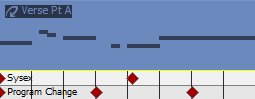
Click the Program button and choose Insert Program Change Keyframe. The program change keyframe row is displayed
at the bottom of the track.
-
Using the Draw  or Envelope
  tool, double-click in the track's keyframe row to add a keyframe.
-
To edit a keyframe, double-click
it to display the Output Settings tab in the Track
Properties window, and then select the program you want to assign
to the keyframe.
The sliders and faders in the track header can function
as trim controls that adjust the overall setting for a continuous controller,
or they can adjust automation settings.
The trim level is added to the automation
settings so your controller envelope is preserved, but with an offset
applied. For example, setting the Pan
trim control to -9% left has the same effect as moving every envelope
point 9% to the left.
Adjusting MIDI controller trim levels
-
Deselect the Automation Settings button .
-
Choose the controller you
want to adjust:
-
If the track's channel selector
is set to All, you can click the  on the Volume
and Pan controls
to choose the channel you want to adjust.
on the Volume
and Pan controls
to choose the channel you want to adjust.
NOTE To change a track's channel, click the MIDI Outputbutton, choose MIDI Channel
from the submenu, and then choose the channel you want the track to send
MIDI data (or choose All
to send on all channels).
NOTE
-
Click the on the other sliders to choose the continuous
controller you want to adjust.
If the controller you want to adjust is not displayed in the menu,
choose Configure Controllers
from the menu. You can use the Output Settings tab in the Track
Properties window to configure which controllers are available on
the track.
-
Drag the slider to
edit the controller value.
You can hold Ctrl while dragging the slider to adjust the setting in
finer increments, or double-click the slider to return it to 0.
If multiple tracks are selected, all selected tracks are adjusted.
Adjusting MIDI controller automation levels
When you select the Automation Settings button , the controller slider handles are displayed as ,
and you can use the controls to edit automation.
The controls in the track header can function as trim controls
or automation controls for track volume, panning, and continuous controller
values. Adjusting the trim control affects the level of the entire track
as it did in previous releases of Acid software.
The trim level is added to the track
automation setting so your automation settings are preserved, but
with a boost or cut applied. For example, setting the trim control to
-3 dB has the same effect as decreasing every envelope point by 3 dB.
To adjust trim levels, deselect the Automation Settings button . When the button is selected, the track controls adjust
automation settings.
-
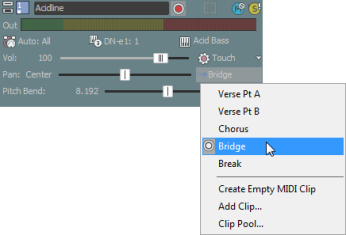
Click the Paint Clip Selector button in the track header. A menu is displayed to
list the track's current clips.
-
Choose a clip from the menu.
The selected clip will be used for creating
events with the Draw or Paint tool  .
.
For more information about using clips, please see Using Clips with Tracks.
