Morph Pads
The Morph Pads is a new type of effects unit that allows you to process all tracks of your project on a common surface. You can select up to 12 multi-effect pads, each applied to specific tracks or the master. The effects are controlled via X-Y pads, where each corner has a completely different setting for the effect parameters of all individual effects, between which you can then morph on the Pad. The Morph Pads can be used as an alternative or in addition to the normal track effects, assignable effects or master effects.
Using Morph Pads
To display the Morph Pads window, choose Morph Pads from the View menu. The window is empty at first. Load a preset for a ready-made combination of Morph Pads from the Presets menu at the top of the window or use the button at the top left  .
.
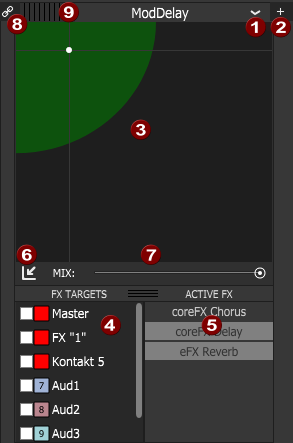
But you can also combine your own set of pads. To do this, add a first Pad using the large Plus button. 

|
Presets: This menu is used to access the Pad's presets. |

|
Click the + button to add another Pad. Up to 12 Morph Pads are possible. To delete a Pad, right click on the Pad and select "Delete this Pad" |

|
Drag the point across the Pad surface to morph the effect. In the four corners of the Pad, different settings apply to each of the effects involved, with each point in between blending between these settings. |

|
FX Targets: Specify which tracks are processed by each Pad. You can choose from all audio tracks, soft synth busses and the master track. Each Pad can be selected for multiple tracks, and conversely, each track can be processed by multiple Pads. Activating a Pad for multiple tracks does not mean that the audio from the tracks will be mixed within the Pad, but rather that multiple instances of the effect will operate in parallel. Note, however, that if a track and the master is selected in a Pad, the audio signal from that track will be processed twice by the Pad, once as a track signal and once as part of the master signal. NOTE Busses, Assignable FX and Input busses cannot be processed with the Morph Pads. |

|
Active FX: The Pad's various effects can be activated and deactivated individually. This allows you to disable individual effects in a complex multi-effect preset or, conversely, to use individual effects separately. |

|
Latch: When Latch is activated, the point automatically returns to the lower left corner after you have dragged it to a location on the Pad. By default, all effect mix components are set to 0 at this point. You can use the latch function to shortly fade in the effect and it will automatically fade out again. |

|
Mix: This sets the effect portion (dry/wet) of the Pad. |

|
Link: Use this button to link the position of the point on one Pad to the point on the Pad next to it, with the setting on one Pad following that on the other. |

|
Use this area to drag a Pad over another Pad to change the order of the Pads. When a track or the master is activated in multiple Pads, the order of the Pads in the window determines the order of the signal processing. |
Automate Morph Pads
The position of the Morph Pad is automatable. The corresponding envelopes are always created in the master track, regardless of which track is being edited by the FX Pads.
TIP To make the master track visible, select View > Show Bus Tracks from the menu or press the B key!
Click the Automation Settings button  in the track head of the master track. If you now move the point in one of the Morph Pads, the corresponding envelopes are created in the master track. You can record the changes made to the Pads during playback or edit the corresponding envelopes using the mouse.
Last modified on June 30, 2026
Was this page helpful?
What did you particularly like about this page?
What did you dislike about this page?
Thank you for your feedback.