AAF/OMF
AAF is a set of specifications for project interchange (.aaf) files. Media files can be embedded or referenced by link. AAF files can have envelope information, static level information or both. OMF is the precursor of the AAF format that could be used for project exchange with very old media applications but it loses track names, markers and automation information during export. It also supports mono files only.
Exporting Project as AAF/OMF
Export the active project with menu File > Advanced export > Export project as AAF/OMF….
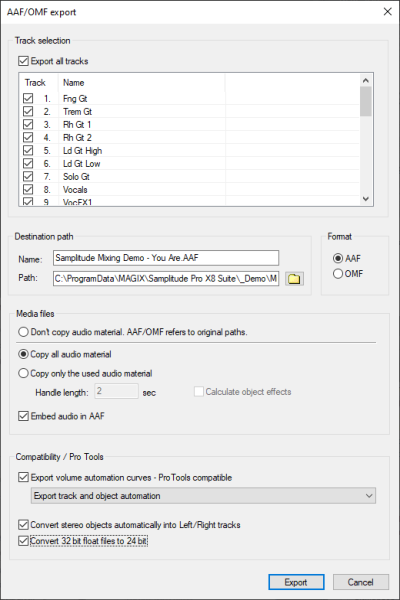
This Picture shows the most compatible export settings for transferring a project to any DAW
The AAF Export transfers the following content:
-
Object position/wave offset
-
Object fade in/out - linear fades only
-
Object crossfade - linear crossfades only
-
Object volume
Note: ProTools clips all object volume settings over 12dB to a maximum of +12dB.
-
Object pan (not imported into ProTools)
-
Object volume automation
-
Track pan automation (not imported into ProTools)
-
Track names
-
Track Volume
-
Track pan (not imported into ProTools)
-
Track volume automation
-
Track pan automation (not imported into ProTools)
-
VIP markers (marker names not imported into ProTools)
-
Timecode offset
-
Timecode format (24, 25, 30 fps)
-
Processing timestamps in audio files
OMF Export transfers the following content:
-
Object position/wave offset
-
Object fade in/out - linear fades only
-
Object crossfade - linear crossfades only
-
Object volume
-
Track names
Note: During AAF/OMF export, media files will always be converted to WAV files. You can't export video files. Corresponding objects are not transferred as well.
Track selection: Select the tracks of the project to be exported. With Export All Tracks you select all tracks with one click.
Name/Destination path: Specify here where you want to export the AAF/OMF file and under which name.
Format: Select here if you want to export the file in AAF format or OMF format.
Media files:
-
Don't copy audio material. AAF/OMF refers to original paths: If you select this option, no media files will be exported – the AAF/OMF file will only refer to the original media file paths.
-
Copy all audio material: If you select this option, all media files will be placed next to the AAF/OMF into the target folder.
-
Copy only the used audio material: If you select this option, only the parts of the media files that are actually used in the VIP are copied into the target folder.
-
Handle length: Set an additional length of audio to the exported audio files. This is useful if you want to adjust the crossfades of the objects in the new project.
-
Calculate object effects: All effects applied to objects are included in the new audio files.
-
-
Embed audio in AAF: If you select this option when exporting, the complete project will be saved as one file containing both the media and the metadata.
Note: Copy the audio material or embed it in the AAF file if you want to give the entire project along with the associated media files to another studio as AAF/OMF.
Compatibility/ ProTools
-
Export volume automation curves - Pro Tools compatible:
-
Off: Object Volume is recognized as ProTools clip gain. The automation curves of the track volume and object volume are ignored.
-
Export track automation only: If you select this option, only the track volume automation will be exported. The object volume automation curves are ignored, but the static object volume are recognized as ProTools Clip Gains.
-
Export object automation only: If you select this option, only the object volume automation is exported into Track volume automation to be imported into ProTools. The static object volumes are recognized as ProTools Clip Gains. Track volume automation is ignored by ProTools.
-
Export track and object automation: If you select this option, track volume automation, object volume automation and static object all will be combined into the volume automation curve for Pro Tools. The static object volumes are thus not reflected as ProTools Clip Gains .
-
-
Convert stereo objects automatically into Left/Right tracks: Stereo objects are not supported by Pro Tools. With this option active, those objects are converted into left/right mono objects and placed on two mono tracks panned accordingly.
-
Convert 32bit float files to 24 bit: As AAF uses only 24bit audio files, 32bit float files are converted to 24bit with this option on.
Note: Timestamps saved with ProTools in Frames for improved compatibility.
Import AAF/OMF
Import AAF files with menu File > Import > Import AAF/OMF….
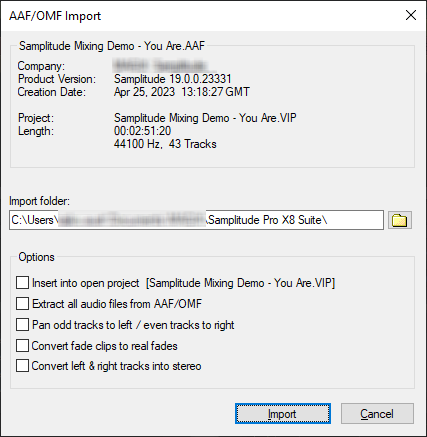
The following content is imported from AAF files:
- Objects: Position/Offset, Fade-in/-out (linear only), Crossfades (linear only), Volume, Pan, Volume automation, Pan automation
- Tracks: Name, Volume, Pan, Volume automation, Pan automation
- Project markers
- Timecode: Offset, Format (24,25,30fps)
- Timestamps of the audio files
The following content is imported from OMF files:
- Objects: Position/Wave Offset, Fade-in/-out (linear only), Crossfades (linear only), Volume
- Tracks: Name
Options:
-
Insert into open project: Normally a new Samplitude project is created from the AAF/OMF file. This option instead inserts the content into the active project as new tracks below the existing tracks.
-
Extract all audio files from the AAF/OMF: If the media data is embedded in the AAF/OMF file, it will be extracted during import and saved as wave files in the project folder.
-
Track Panorama - Odd/even track to left/right: It is assumed that the tracks of the imported project are present as alternating left and right mono tracks and the panorama of the tracks in the created project is adjusted accordingly.
-
Convert fade clips to real fades: Pro Tools uses a special format for clips with fades when saving AAF, where the fades are rendered into separate audio files. In this way, Pro Tools implements special fade curve shapes that the AAF format does not support. Such fade objects therefore also create separate objects for all fades and crossfades when imported into Samplitude. This option converts such fade clips into normal objects with fades. Activate the option if you import AAF files that come from Pro Tools and you do not need these special fade curves. This way you can reduce the number of objects and create a clearer project.
-
Convert left/right tracks to stereo: If the tracks of the imported project exist as alternating left and right mono tracks, stereo tracks are created for superimposed clips, on which stereo objects are located.