DeClicker/DeCrackler
Note: This effect is part of the Cleaning & Restoration Suite. In full functionality, this suite is only included in Samplitude ProX Suite. In Samplitude, these effects have a simplified interface with limited functionality.
The DeClicker removes crackling and single clicking noises that are typical of scratched records. The DeCrackler algorithm was developed specifically to remove crackling noises, making it easier to remove crackling from old records.
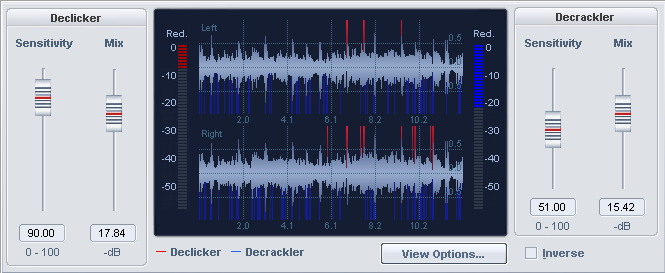
The DeClicker is on the left side of the dialog, and the DeCrackler is on the right.
Settings and Controls
| Parameters | Description |
| DeClicker Sensitivity | This parameter determines the DeClicker's sensitivity to noise. |
| DeClicker Mix | This parameter influences the intensity at which the DeClicker engages at the detected areas in the audio material. |
| DeCrackler Sensitivity | Use this parameter to determine the DeCrackler's sensitivity to noise. |
| DeCrackler Mix | Use this parameter to influence the intensity at which the DeCrackler engages at the detected areas in the audio material. |
| Inverse |
If this switch is activated, you will hear only the part of the signal that is removed by the algorithm. If the parameters are set optimally, the complete noise and just moderate components of the desired signal will be audible. If the parameters Sensitivity are set too high, parts of the useful signal are also filtered, which can then lead to tonal changes. |
|
Bypass |
This allows you to temporarily disable the effect in order to compare the unprocessed signal with the processed signal. |
In the graphic, the processed audio material is continuously displayed as a waveform and as a spectrogram and you can see at which points the DeClicker (red) or the DeCrackler (blue) become active.
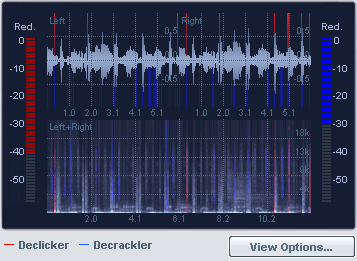
The left border of the graphic display features the reduction display for the DeClicker. It indicates by how many decibels a detected click has been reduced. The right border features the reduction display for the DeCrackler. This indicates how many decibels the crackling has been reduced.
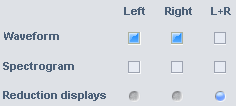
View options: This opens a settings dialog to configure the signal display. Select the right and left channel or the mean value from both left and right (L+R) as a source for the waveform, spectrogram or the two reduction displays. The settings are applied by closing the dialog.