Dynamic Equalizer
This function is only available in Samplitude ProX Suite.
With the Dynamic Equalizer, the frequency spectrum of a signal can be processed depending on the level. This means that the effect of a single filter band can be controlled depending on the strength of the occurrence of certain frequencies in the input signal. In other words, you remove an "interfering" frequency only where it occurs more strongly, but leave it unprocessed in other places.
Unlike the Multiband Dynamics effect, where the signal is split into different bands by filters and then dynamics processing is applied to these bands separately, the Dynamic Equalizer processes the signal as a whole and the dynamics of each band are affected only by the frequency components that occur in that band. As a result, there are fewer phase changes between the frequency components in the signal, which means that fewer unwanted artifacts can occur.
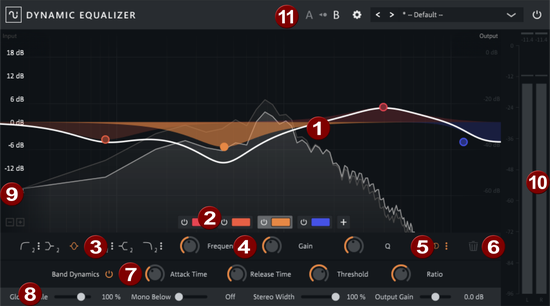


 The On/Off button can be used to deactivate the bands individually.
 High Pass
  Low Shelving
  Band Pass
  Peaking
  High Shelving
  Low Pass



Tips:
- If you move the mouse over the filter parameters, the value is displayed numerically. By double clicking on this value, it can also be entered numerically. Use the Tab key to move to the next value.
- New bands can also be created directly in the filter graphic by double-clicking. Depending on the location of the click, the correct filter type is selected: Left above 0db -> Low Shelving, Left below 0dB -> Highpass, Right above 0dB -> High Shelving, Right below 0dB -> Lowpass, Center -> Peaking.
- Right-clicking on a circle for a filter band brings up a context menu that allows you to cut, copy and delete filter bands. A copied or cut filter band can replace another one with Replace, with Replace (using current position) the frequency and gain remain unchanged.
User Presets
To save your own presets, select Save as… from the menu. You can set a category and a preset name. Once you have created your own presets, the Preset menu contains a second section USER, where you can find your own presets, organized by category.
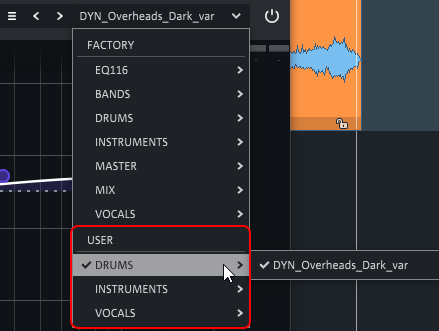
Changed factory or user presets get an asterisk in front of the name.

With Revert changes you restore the settings of the preset, with Save you save the changes in the preset. Changes to Factory Presets cannot be saved, but you can save them as a User Preset using Save as….
You can rename a user preset with Rename… and delete it with Delete.
You can also organize your user presets by using Open user presets folder to open the folder with the user presets. The categories in the Preset menu correspond to subfolders in this folder, the preset names to the file names of the presets. If you have moved or renamed files there, run Reload user presets so that these changes are applied to the preset menu.
Settings
Show tooltips: Here you can disable the tooltips.
Disable dynamic labels: This allows you to switch the labels of the control elements: By default, a control will display the set value only when you hover the mouse over it, and its function otherwise. If the check mark is active, the set value is always displayed.
Disable FFT analyzer/ Disable peak meters/Enable OpenGL rendering/Frame Rate limiting: With these options you can accelerate the performance of graphical display in case of overload.
Oversampling: For a balance between available processing power and required quality, you can set the oversampling between off and 8x.
Zoom level: This allows you to display the plug-in interface in different sizes.