External Tools
This dialog is used to configure the transfer of objects to other audio programs for editing.
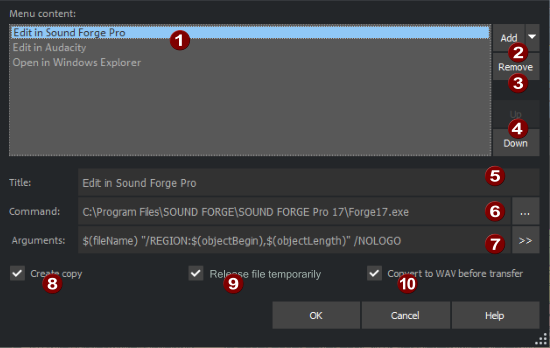
|
|
Menu content: All entries in this list create an entry in the context menu of an object. This entry can then be used to transfer the object to the corresponding external editor and edit it there. |
|
|
Add: Click here to create a new list entry. A file selection dialog opens where you can select the executable file in the program folder. If SOUND FORGE or SpectraLayers are installed, you can use the menu next to the button to immediately create suitable entries with all the correct arguments for these programs. The entry Open in Windows Explorer opens an Explorer window at the location of the object's audio file and selects it. |
|
|
Remove: Deletes the selected entry. After deleting an entry and closing the dialog with OK, the entry is no longer displayed in the context menu of objects. |
|
|
Up/Down: This can be used to change the order of the menu items. |
|
|
Title: Enter text for the menu entry here. |
|
|
Command: Here the name of the program with path is displayed. Use the ... Button to open the file selection dialog, which allows you to select another file. |
|
|
Arguments: Additional arguments for the external program can be specified here. In the menu next to it >> you can find predefined variables to insert into this command line to pass object parameters, such as object start and end, to the external program if the program supports it. |

|
Create copy: This option, as with other destructive effect edits of objects, ensures that the edits are made on a copy of the audio data to allow undoing. |

|
Release file temporarily: This option is enabled by default and ensures that the file from Samplitude is released during editing in the external program so that changes can be written to this file. If no change is intended by the external program (such as when viewing in Explorer), this option can be disabled. This allows the project to be played back in Samplitude even after the external tool has been started. |
|
|
Convert to Wave before transfer: Since some editors cannot open MP3, FLAC or video files, files in these formats are converted to Wave before opening the external editor and saved under a different name. However, this will prevent you from transferring the file back to the virtual project. We recommend that you activate this option when working with these editors. This means the content of an object will always be converted to wave before transferring to the editor and the object will be adjusted for editing. |


Keyboard shortcuts can also be assigned to the context menu items. The corresponding entries in the tree structure at Keyboard shortcuts and Edit menu are located at the very bottom at Menu File > Program Preferences.