Spatial Panner
The new Spatial Panner enables intuitive, fast, and visually clear control of spatial positions, from stereo to 3D and immersive Formats like ADM/Atmos mixes. It focuses on a uniform panning workflow for all bus and track formats and direct multichannel control with visual feedback. It is able to show all sources in one display to see them in context to each other. If a source is routed to different surround and stereo busses, their positions are linked to edit them together, and if necessary, also separately.
The Spatial Panner can stay open and reacts dynamically on all changes in the mixer, routing or project setup.
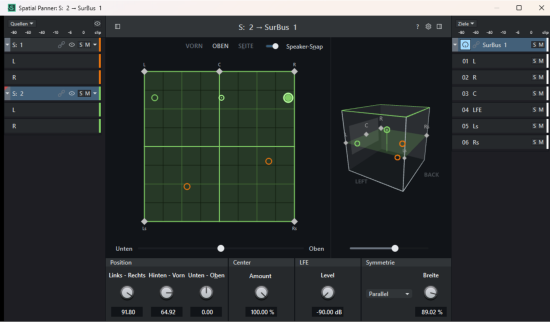
Opening the Spatial Panner
To open the Spatial Panner:
-
In the Mixer / Track Editor: Right-click the pan control or the surround widget and the Spatial Panner opens with the clicked track selected on the source side. You can also choose Spatial Panner… in the View menu or the keyboard shortcut Shift + Alt + P to open it with the currently selected track as selected source.
-
An AUX or SubMix bus can also be a target in the spatial panner. With such a track selected, use the keyboard shortcut Ctrl + Shift + Alt + P to open the Spatial Panner with this track selected as selected target instead.
-
In the menu Track > More… there are the commands Open Spatial panner for source… and Open Spatial panner for target….
Top Controls

|
|
The panner window is non-modal and can stay open all the time. It is used to edit the stereo and surround pannings from all tracks and busses to all target busses and masters. The window caption shows the currently active panning edited. |
||
|
|
 Clicking the eye symbol on top of the sources hides all sources from the editor except the active source (which is always visible). With the eye open, all sources are visible. If “Exclusive source visibility” is enabled in the options, every source other than the active one will be hidden again when changing the active source. Clicking the eye symbol on top of the sources hides all sources from the editor except the active source (which is always visible). With the eye open, all sources are visible. If “Exclusive source visibility” is enabled in the options, every source other than the active one will be hidden again when changing the active source. |
||
|
|
|
||
|
|
Show or hide the source section. | ||
|
|
The source/target pair currently selected for editing is shown in the caption of the Spatial Panner dialog. | ||
|
|
Open the program help | ||

|
Options for the Spatial Panner | ||
|
|
Show or hide the target section. | ||
|
|
Targets: Similar to the Sources menu, this menu lists all available routing targets (buses and masters). Use the checkboxes on the left to add routings from the currently selected source to a target. You can also select a different target in the right-hand column to display in the Spatial Panner. |


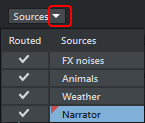


Sources (left)
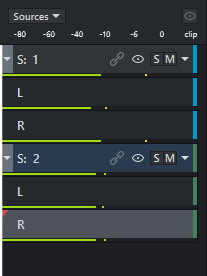
|
The sources side to the left lists all active panning (tracks, busses or ADM objects) sources routed to the target selected at the right side. Each source can be shown and hidden with the eye symbol
Each source has its own peak meter and solo/mute switch. To distinguish the different sources in the pan view, they get the color settings of the source track. |
 With the triangle button left at the track you expand a track to show the single channels of a source.
  Link state. A closed chain (linked) means the source shares the same pan position in all targets. To switch linking for a target, use the link button in the target section (see below). An open chain means linking is inactive in one of the targets.
With the triangle button on the right  you open a menu to alternatively use Matrix mode or an external VST plug-in for panning. If a different mode is active for a source, the eye symbol is replaced by the corresponding symbol (Matrix
  , plug-in
  , Stereo
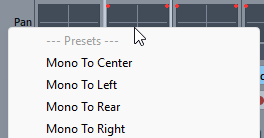
  ). Also in this menu, you can save a pan position as a preset or load it from a preset. A set of useful presets for panning to standard positions is included for each mode and each surround format.
Tip: You can also load these presets without opening the Spatial Panner by clicking on the left side of the pan widget in the Mixer or Track Editor.
Panning-View (center)
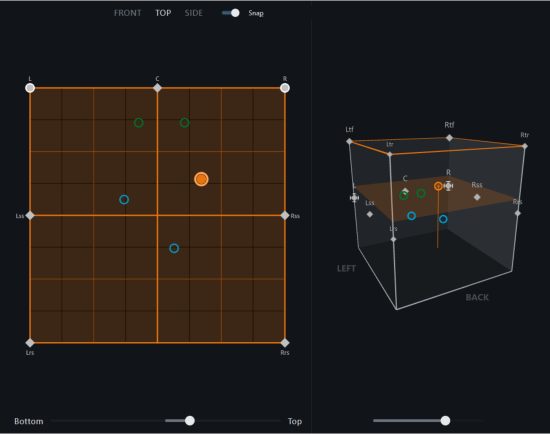
The central panning view has two displays showing the scene in a 2D and a 3D view.
The 2D view shows the positions of the sources (circles) and speakers (diamonds) in a plane from one of the directions. Change the direction by selecting the FRONT, TOP or SIDE options above the display. You can move the active source around by dragging it with the left mouse button held. With the fader below, the respective third dimension is adjusted (e.g. the Z-Dimension from bottom to top in the TOP view).
Stereo channels of a stereo source are moved together when the Symmetry parameter is set to Parallel or Angle:
-
Parallel mode: Left and right source channels are kept on a constant distance, given by the Spread parameter. Initially stereo sources are panned to the left and right front speaker each and so the spread is 100%. You can then drag one channel or the middle handle towards the other one to reduce the spread. Once you move the other channel after this, the spread is fixed and the channels are linked, so you drag around both channels be either dragging one of them or the middle handle.
-
Angle mode: In Angle mode, you can move either the left or right source channels position and the other is moved moved mirror-symmetric. The axis of symmetry is a line going through the middle handle between the two sources and the center point. The lines from the center to the source channels are forming an angle, given by the Spread parameter. If you also press the Alt key while dragging, the distance from the center is fixed, and the movement takes place along a circle with a fixed radius—that is, at that distance from the center.
If the targets are linked for a source, moving around a source in one target moves it also in the other target(s).
The 3D view shows the distribution of the sources and speakers in the 3D space as a cube. By dragging it with the mouse you can rotate the cube in any direction, with the fader below it you rotate it around the Y-axis to see the 3D space from each direction. The plane that is selected in the 2D view has its edges highlighted.
With Snap active, the sources will snap to speaker positions.
The Draw button becomes available as soon as a playback range is selected. This allows you to draw a motion trajectory across that range. For more information, see Panorama Automation.
Targets (right)
|
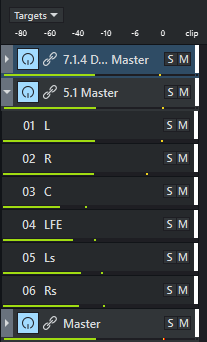
The Targets list to the right shows all panning targets (surround buses and masters) for the active source. The highlighted target is the one selected for editing. It is possible to route sources to more than one surround target. Using the Targets menu, you can route the active source to additional targets or select other targets to display in the panner.
|
 With the On/Off button you can enable/disable a single routing.
 By default, the pan position of the active source is linked in all targets the source is routed to, so you can pan a source in all surround and stereo mixes at once. If you want to disable the link to position a source differently in one target, click the link button.
Parameters (bottom)
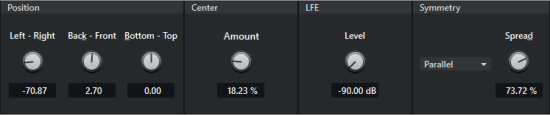
Below the Panning view there are parameter knobs to control panning translation (Left-Right, Front-Back, Bottom-Top) .
Center Amount: This parameter controls the extent to which the center channel contributes to the playback of a sound source on the front channels. This allows you to adjust whether a center-positioned signal is played back exclusively through the center channel, as a phantom center through the left/right channels, or proportionally through the center and left/right channels. This parameter is also referred to as divergence (a 100% center amount corresponds to 0% divergence).
In applications such as film sound, it is common to place dialogue specifically on the center channel, while music and sound effects are completely removed from the center channel.
There are also knobs to send the signal to up to 2 different LFEs and the settings for Symmetry Mode and Spread (see above).
Options
You can configure several options under the gear icon:
-
Show 3D View: This hides the 3D view on the right.
-
Synchronize with track selection: The active source is linked to the active track selection in the mixer or project window. When using the Spatial Panner to pan single objects, you can use the similar option for objects Synchronize with object selection.
-
Use source color as highlight color: Highlighting the layer containing the source with the source’s color can be disabled here.
-
Exclusive source visibility: When this option is enabled, any chosen source is shown exclusively at first, you can show other sources by clicking the according eye symbol or all other sources by clicking the eye symbol above the sources. When changing the active source, every source other than the active one will be hidden again.
-
Keep draw mode active: The Draw mode remains active after you finish drawing, so you can draw additional motion sequences in the same or a different source without having to reactivate it. Disable this default option to have it disabled after each drawing.
Spatial Panner in Stereo Mode (Panorama Editor)
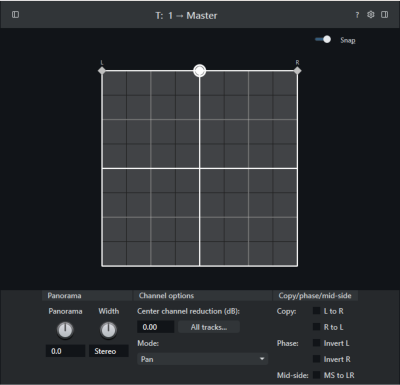
If a stereo routing is selected as the source-destination combination—that is, if both the source and destination are in stereo—the Panorama Editor appears in the Spatial Panner. The source can now only be moved along the L/R axis, and the Panorama-Editor's parameters and options are displayed in the parameter section.
Keyboard shortcuts
General
|
Function |
Keyboard shortcut |
| Show/hide sources | Alt + 3 |
| Show/hide targets | Alt + 4 |
| Toggle visibility of the active source | Alt + Shift + H |
| Select first source | Alt + Shift + Q |
| Select first target | Alt + Shift + T |
| Open Sources menu | Alt + Shift + O |
| Open Targets menu | Alt + Shift + R |
| Open Options menu |
Alt + O |
Source/target
The keyboard shortcuts apply to the corresponding side when a source or target has been selected there (keyboard shortcut Alt + Shift + Q/T).
|
Function |
Keyboard shortcut |
| Solo | Alt + S |
| Exclusive solo | Alt + Shift + S |
| Mute | Alt + M |
| Expand/collapse channel list | Alt + + / - , Enter |
| For multiple selections, select the active source/active target from the list | Alt + Shift + Enter |
| Source only: | |
| Open the menu for the selected source (switch mode, preset menu) | Alt + Shift + M |
| Hide/show source | Alt + H |
| Target only: | |
| Enable/disable linking | Alt + L |
| Enable/disable target routing | Alt + X |
Controls
All controls can be focused using keyboard shortcuts. Some shortcuts depend on the language of the program interface; the relevant letters are underlined in the control labels when pressing Alt.
|
Function |
Keyboard shortcut |
| 2D view direction from the front | Alt + F |
| 2D view direction from above | Alt + P |
| 2D view direction from the side | Alt + E |
| Snap | Alt + N |
| 2D view slider for the third dimension | Alt + Z |
| Rotate 3D view horizontally | Alt + D |
| Left/Right | Alt + I |
| Back/Front | Alt + K |
| Bottom/Top | Alt + B |
| Center Amount | Alt + A |
| LFE Level 1/2 | Alt + 1/2 |
| Symmetry mode | Alt + Q |
| Spread | Alt + R |