Panorama Editor
Right-click the panorama slider or knob in the Track Head, Mixer, Track Editor, or Object Editor to open the Panorama Editor.
In addition to panning objects and tracks using the standard panorama control, the Panorama Editor provides further options for adjusting the stereo image and phase settings.
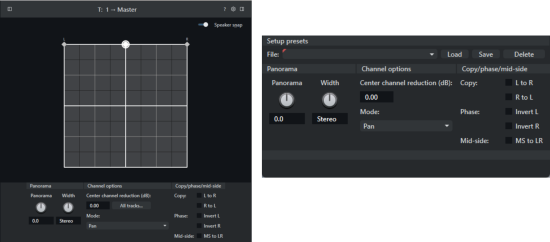
The new Spatial Panner combines the panning of all sources, such as tracks, ADM/Dolby Atmos objects, AUX sends, and surround panorama, in a single dialog. In most cases, the Panorama Editor is embedded in the Spatial Panner. It is still displayed as a separate dialog only when panning direct hardware outputs or when opened from the Object Editor.
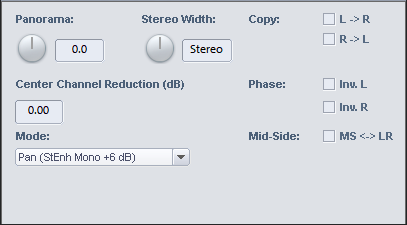
Panorama: Sets the level distribution between the left and right channels.
For mono tracks, the signal is converted from mono to stereo in the signal flow after the panorama control. From this point onward, effects or plug-ins can be processed in stereo. You can change the routing position in the Effect Routing dialog.
Stereo width: Adjusts the stereo base width. No change occurs in the center position. Moving the control to the left gradually replaces the stereo signal with the mid signal (the mono sum of L+R), thereby reducing the stereo base width. At the far-left position, only the mono signal is audible. Moving the control to the right adds the side signal (the difference between L-R and R-L, respectively), thereby increasing the stereo base width.
The Multiband Stereo Enhancer lets you process the stereo width selectively in three frequency bands.
Copy: Changes the channel assignment. If you activate Copy L > R, only the left channel is heard on both sides. If you activate Copy R > L, only the right channel is heard on both sides. If you activate both options, the left and right channels are swapped.
Center Channel Reduction (Panning Law): To compensate for level fluctuations during panning, it is common to reduce the track level additionally when the panorama is centered. The appropriate setting depends on the audio material. Common settings are:
- 0 dB: This setting is commonly used for stereo material. No level reduction occurs in the center position. When panning to the right, the right channel remains at its original level; when panning to the left, the left channel remains unchanged. The audio material is not altered in the center position. With mono signals on a stereo track, this setting can increase the level when the signal is placed in the center.
- –6 dB: This setting is suitable for mono tracks. In the center position, the levels of the left and right channels are each reduced by half.
- For stereo signals, –3 dB and –4.5 dB are also common settings.
- In the Program Preferences > Effects > General dialog, you can define a default value that is applied when creating new tracks or converting the track type from mono to stereo or vice versa.
Phase: Inverts the phase of the stereo channels individually. By default, the Phase button in the Mixer and Track Editor inverts the phase of both stereo channels. You can change this behavior with the option Use mixer phase switch only on left channel under Program Preferences > Effects > General. The Phase button then affects only the left channel and can be used to correct classic phase reversals caused by incorrect wiring, which typically affect only one stereo channel.
Mid-Side: The MS->LR option converts a Mid/Side signal into a stereo signal. It assumes that the mid (mono) signal is on the left channel and the side signal is on the right channel.
Mode: Determines whether panning is calculated after the stereo width—Pan—or before it—Pan (StEnh post pan). The following options are also available:
- 2 Channel Panorama: Lets you use the two knobs to set the panorama positions of the left and right channels independently.
- 2 Channel Volume: Lets you use the two knobs to set the levels of the left and right channels independently.
The parameters are processed in the following order: Copy > Stereo Width > Phase Invert > Panning/Panning Law.
MS Processing
“MS” stands for “mid/side” and describes a method in which stereo information is recorded not in separate left and right channels, but in a mid channel (“M”) and a side channel (“S”).
MS recordings
MS miking produces recordings in which the mid and side components are stored separately instead of as left and right channels. You can process MS recordings using the presets included in the Stereo Panorama dialog. The recordings are assumed to be stereo files with M on the left and S on the right.
Stereo processing of MS source material
To obtain the correct stereo image from an MS file, duplicate the source material to a new track. For the first track, select the Left channel only preset. This plays only the M signal in mono. On the second track, use the Side signal (stereo) (from MS source) preset to play only the S signal in stereo, with +S on the left and -S on the right. Then mix both tracks together at 0 dB each.
Tip: For this application, you can also use the MS-> LR option in the dialog.
MS processing of stereo source material
Another application is the independent processing of mid and side components when the source material is already in stereo format. Again, duplicate the source material and place it on a new track.
Mono (get mid signal from stereo source) extracts the mid component from the source material for the first track, while Side signal (stereo) (from stereo source) extracts the side component in stereo for the second track. Then mix both tracks together at 0 dB each.
Advanced MS processing
Additional presets are available for using stereo signals on mono tracks:
-
Mono (get mid signal from stereo source): Uses only the mid component of the stereo signal on a mono track.
-
Left Channel only: Uses only the left channel of the stereo signal on a mono track.
-
Right Channel only: Uses only the right channel of the stereo signal on a mono track.
-
Side signal (mono) from stereo source: Uses only the mono side component of the stereo signal on a mono track. This lets you apply all subsequent object and track effects to the side component as mono effects.
-
Side signal (stereo) from stereo source: Uses only the stereo side component of the stereo signal on a stereo track. This lets you apply all subsequent object and track effects to the side component as stereo effects.
-
Convert side signal (mono) to stereo: Converts the mono side component of the signal to stereo.