The Envelope Tool

When the Envelope , tool is selected, you can add, remove, select or adjust envelope points on effect automation envelopes.

The Edit tool allows you to add, remove, or adjust envelope points, but you cannot select envelope points with the Edit tool.

Adjusting an envelopeClosed

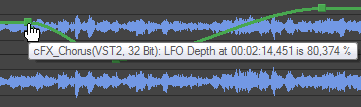
By default, A new envelope will contain a single envelope point. If you want to adjust the overall level of an envelope, drag the envelope up or down. A floating ToolTip will show you the envelope's current setting:

If an envelope has multiple points, you can drag each point, or you can drag envelope segments up or down.

Tips:

  • Hold Ctrl while dragging an envelope point or segment to adjust the value in fine increments without changing the envelope points' horizontal positions.

  • Hold Ctrl+Alt while dragging an envelope point or segment to adjust the value in normal increments without changing the envelope points' horizontal positions.

  • Hold Alt while dragging an envelope point to move the point's horizontal position without changing its value.

  • With the Envelope tool , you can drag horizontally to select multiple envelope points in the selected data window.

Adding envelope pointsClosed

To create more complex envelopes, you will need to add points. To add an envelope point, double-click the envelope. You can then drag and position the point as necessary.

To delete a point, right-click it and choose Delete from the shortcut menu.

Flipping an envelopeClosed

You can flip an envelope to invert the envelope around its center. Volume, panning, and effect automation envelopes can be flipped.

Flipping all points

  1. Right-click an envelope or a point. A shortcut menu is displayed.

  2. Choose Flip All Points from the shortcut menu.

Flipping selected points

  1. Create a time selection with the Envelope tool to select the points you want to flip.

  2. Right-click an envelope in the time selection. A shortcut menu is displayed.

  3. Choose Flip Selected Points from the shortcut menu.

Setting fade propertiesClosed

You can adjust the fade curve for each envelope segment individually. To change the fade curve, right-click an envelope segment and choose a command from the shortcut menu.

Fade Type

Fade In/Out Envelope

Linear Fade

Fast Fade

Slow Fade

Smooth Fade

Sharp Fade

Hold

Cutting, copying, and pasting envelope points Closed

  1. Select the Envelope tool .

  2. Click within a data window to select it.

  3. Drag horizontally in a data window to select envelope points.

  4. From the Edit menu, choose Cut or Copy.

  5. Click to position the cursor where you want to paste envelope points.

    TIP Click within a different data window if you want to paste envelope points across data windows.

  1. From the Edit menu, choose Paste.

Copying an envelope to another data window Closed

  1. Select the Envelope tool .

  2. Click within a data window to select it.

  3. From the Edit menu, choose Select All.

  4. From the Edit menu, choose Copy.

  5. Click within a data window to select it.

    TIP You can paste envelope points to a different envelope type by selecting the envelope where you want to paste.

  6. Click Go to Start if you want the envelope to appear exactly as it was in the original data window, or click to position the cursor where you want the envelope to start.

  7. From the Edit menu, choose Paste.