Automating Effect Parameters

When you add an effect that supports automation to the Plug-In Chainer, you can click the Show Parameters button to display the effect's automatable parameters. You can use these controls to add, show/hide, and enable/bypass automation envelopes.
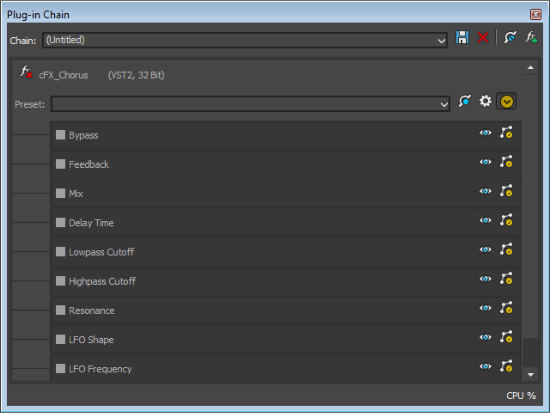
Plug-in parameters can be edited using the plug-in's controls or the automation envelope in the data window.

Choosing a new effect chain preset will clear the current effect automation settings.

Adding a volume or panning envelopeClosed

Panning envelopes will have no effect on mono source data. Convert mono sound data to stereo before adding a panning envelope. »For more information, see Channel Converter

  1. Click within a data window to give it focus.

  2. From the Insert menu, choose Volume Envelope or Pan Envelope (you can also press V to add a volume envelope, or press P to add a panning envelope).
    An envelope is added to the data window, and the Sound Forge Pro Volume or Sound Forge Pro Pan plug-in is added to the Audio Plug-In Chainer. If the Plug-In Chainer is not visible, it will be opened automatically.

    If a data window already has a volume or panning envelope, pressing V or P will hide the envelope.

  3. Adjust volume or panning with the envelope in the data window.

Adjusting effect parameters with plug-in controlsClosed

  1. Click to position the cursor in the data window and use the controls in the Plug-In Chainer to adjust effect parameters at the cursor position. The envelope is updated as you adjust the plug-in's controls.

  2. You can also adjust the envelope to adjust parameters. »For more information, see The Envelope Tool

When you automate an effect’s frequency parameter such as the modulation frequency parameter in the amplitude modulation effect you may notice that the frequency changes are more apparent when moving through the lower frequencies. This is because frequency scales plug-ins use a logarithmic scale, but effect automation uses linear interpolation.

To make the automated frequency changes sound more natural, change the fade curve types to change the interpolation rates between envelope points. For high-to-low frequency sweeps, use a fast fade curve; for low-to-high frequency sweeps, use a slow curve. »For more information, see The Envelope Tool

Adjusting effect parameters with envelopes Closed

An envelope is displayed in the data window for each effect parameter that you've chosen to automate. Envelope points represent plug-in parameter settings at a specific point in time.

You can add points, adjust their positions, and change the fade curves between points to modify effect parameters and the transitions between them. »For more information, see The Envelope Tool

When you automate an effect’s frequency parameter such as the modulation frequency parameter in the amplitude modulation effect you may notice that the frequency changes are more apparent when moving through the lower frequencies. This is because frequency scales plug-ins use a logarithmic scale, but effect automation uses linear interpolation.

To make the automated frequency changes sound more natural, change the fade curve types to change the interpolation rates between envelope points. For high-to-low frequency sweeps, use a fast fade curve; for low-to-high frequency sweeps, use a slow curve. »For more information, see The Envelope Tool

Previewing effect automationClosed

Effects from the Plug-In Chain are previewed in real time when you play back a file.

To hear the results of your effects chain without applying it to the sound file, click the Play Normal button in the data window's playbar.

You can select the Bypass button in the Plug-In Chain to bypass all effects in the chain, or select the Bypass button for an effect to bypass individual effects.

Applying effect automation Closed

Effects from the Plug-In Chain are applied when you save the file.

Showing or hiding effect automation envelopes Closed

  1. In the Plug-In Chainer, click the Show Parameters button to display the effect's automatable parameters.

  2. Select the Show Envelope button to display a parameter's envelope, or deselect the button to hide the envelope. Hiding an envelope simply removes the line from the data window while it retains the playback properties.

Enabling or bypassing effect automation envelopes Closed

  1. In the Plug-In Chainer, click the Show Parameters button to display the effect's automatable parameters.

  2. Select the Enable Envelopes button to apply an automation envelope to your audio signal, or deselect the button to ignore the envelope. When the button is not selected, an effect automation envelope is ignored and the effect's initial state is used for the duration of the data window.

    Bypassed envelopes are drawn with a dashed line in the data window.