Export Dialog

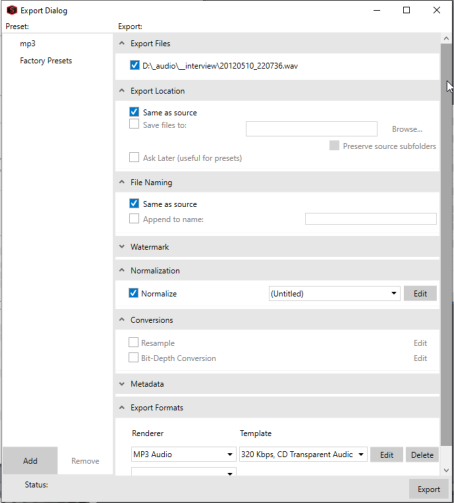
The Export dialog allows you to save all open files in one go. Also if you frequently save audio files in specific folders or in specific files formats, you can use the Export Dialog to define and use Export Presets.

Creating an Export PresetClosed

  1. Open the Export Dialog with Menu File > Export...

  2. Adjust the settings in at the left side of the dialog:

    • Export Location: Select a radio button to indicate where you want to save the files

      Item

      Description

      Same as source

      Select this radio button if you want to save the original files.

      Save files to

      Select this radio button and type a path in the edit box (or click Browse to select a folder with an explorer window) if you want to save the files in a specific folder.

      You can select the Preserve source subfolders check box if you want to use the same folder structure in your source and target files.

      Ask Later

      With this option, you will be asked for the location to export when actually exporting. Use this option, when you want to save a preset with all the other options set but want to leave open, where to save the files in an actual export.

    • File Naming: Select a radio button to indicate the format you want to use for exported files

      Item

      Description

      Same as source

      Select this radio button if you want to save the file using the same name as the original file.

      Append to name

      Select this radio button and type text in the box if you want to add a descriptor to the file names of saved files.

      The text you enter will be added to the original file name during conversion For example, if your source file is C:\Audio\DoorSlam.wav, the file could be saved as C:\Audio\DoorSlam-processed.wav during conversion.

    • Normalization/Conversions: These options allows you to normalize the files, limit it, resample it or change the bit depth before exporting it. When activated, you can choose a preset from the list box. Edit opens the dialog window to adjust the normalization settings and the dialog window of the coreFX Limiter which is used for limiting. See Normalizing, Resampling and Bit Depth Converter for details.

    • Metadata: Type values for any metadata (file information) you want to save in the output files.

      • If the Overwrite check box is not selected and the destination file already includes information for a metadata item, the existing information is preserved (keywords, however, will be appended).

      • If the Overwrite check box is selected and the destination file already includes information for a metadata item, the existing information is overwritten with the information from the Metadata tab (existing information will be erased if the box is blank).

      NOTE If a metadata type is not supported by the output format, it will be ignored.

    • Watermark: Here you can select a watermarking file that is mixed with the output file.

    • Export Formats: Choose a file type from the Renderer drop-down list if you want to convert your files to a new format.

      Choose a setting from the Template drop-down list to choose the parameters that will be used for rendering your file, or click Edit to create a custom template. »For more information, see Custom File Templates.

      You can export the files to multiple output formats at once. After adding an output format, another drop-down menu appears to add another output format. Delete output renderers with the Delete button.

      TIP For any output format, choose Default Template to preserve the source file's format (sample rate, bit-depth, and number of channels) in the output file.

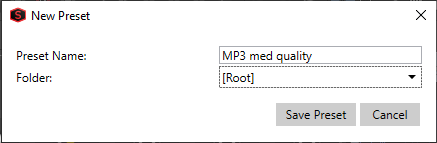
  3. When everything is set, click Add in the lower left corner of the dialog to add your preset to the preset menu. The New Preset dialog window opens.

    Give your preset a descriptive name and optionally choose a folder (see below) where the preset should be stored.

  4. The Preset is now available in the list on the left side of the dialog.

    To delete a preset, right click it and choose Delete Preset.

    NOTE You cannot edit an existing preset. To change a preset, load it by clicking on it, delete it, make your changes and save it again

    Folders: The preset list can contain folders where you can save presets together, for instance for a specific purpose.

    NOTE One folder Factory Presets is already there, containing the factory presets supplied with the program.

    • To create a folder, right click on the list and choose Create New Folder....

    • To remove a folder, right click it and choose Remove Folder.

Using Export PresetsClosed

  1. From the File menu, choose Export. The Export window is displayed.

  2. The available Export Presets are listed on the left side of the Export dialog. To load a preset, just click on it, the Export settings on the left side are immediately updated with the contents of the preset.

  3. The Export files section on top of the settings shows all currently open audio files. By default, all are checked for export. You can un-check specific files to exclude them from the export.

  4. Click on the Export button in the lower right corner to carry out the export.