Using the Plug-In Manager
From the View menu, choose Plug-In Manager to open or close the Plug-In Manager.
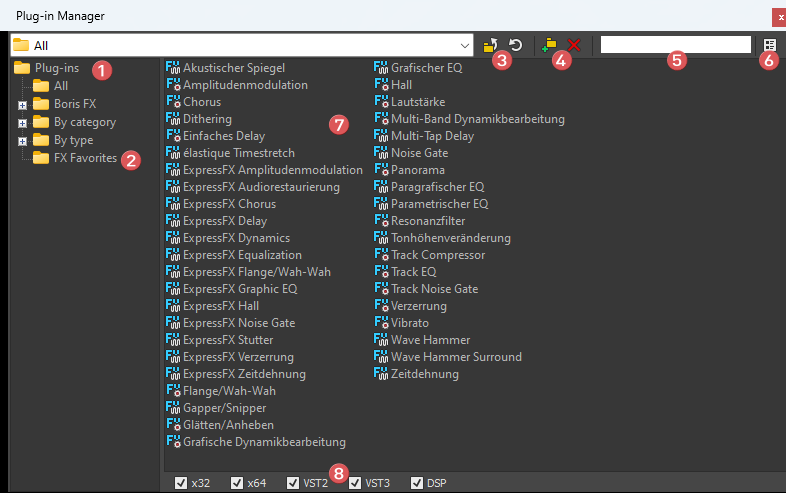
The Plug-In Manager displays your plug-ins in an easy-to-use tree view
much like the Windows Explorer. You can use the Plug-In Manager to organize your plug-ins
TIP You can dock the Plug-In Manager within the Sound Forge Pro workspace so it's always visible.
The tree structure at the left side of the Plug-In Manager is always the same as the menu structure in the FX Plug-In menu, changes in the folders and their content are immediately reflected in the menu above.
|
1 |
the Plug-ins folder structure, chose a folder to list all plug-ins, filtered by a certain aspect:
|
|
2 |
Use the FX Favorites folder |
|
3 |
These controls are used when the tree view is hidden (see 6). You can also navigate to any folder using the drop-down menu. This button |
|
4 |
Click the Create
New Folder button |
|
5 |
Search field: Enter one or more search strings (not case sensitive) to filter the list of plug-ins shown below to quickly find your plug-ins by name. |
|
6 |
This button shows or hides the tree or the options view. |
|
7 |
On the right side of the dialog, the plug-ins in the selected folder and its subfolders are listed. Double click a sub folder to enter it. You can move your plug-ins into these folders by dragging it. You can also drag plug-ins into other folders in the tree view, for instance to change its category or to build your own category tree below the Favorites folder. To remove a plug-in from a Favorites folder, right click it and chose Delete. NOTE You cannot remove a plug-in from a folder in the Plug-ins part of the tree, you can just move it between these folders. By this it is ensured that every installed plug-in, that is not hidden (see below) is listed somewhere in the tree. You can use the Plug-in Manager to apply an FX plug-in:
|
|
8 |
Options view: If you want to exclude certain types of effects from the display, uncheck the corresponding option. |
 in the tree to have rapid access to your favorite plug-ins. Plug-ins from this folder
will be available from the lower section of the
in the tree to have rapid access to your favorite plug-ins. Plug-ins from this folder
will be available from the lower section of the  brings you one folder up in the folder tree. Re-Read te folder contents with the refresh button
  .
.  if you want to create a subfolder under any of the
  .
.Rename a plug-in

Hide a plug-in
Last modified on June 09, 2026
Was this page helpful?
What did you particularly like about this page?
What did you dislike about this page?
Thank you for your feedback.