Using the Plug-In Chain

The Plug-In Chain allows you to link up to 32 DirectX and VST plug-ins into a single processing chain. All of the plug-ins in the chain can be previewed simultaneously in real time (as long as your computer can process the preview information quickly enough).

The Plug-In chain window works somewhat different than the application of effects or processes from the Process, Effects or FX Plug-Ins menu and even the Plug-In-Chain used in the Apply Plug-In Chain... option in this menu:

  • All effects in the Plug-In chain window work in real-time on the audio playback of a data window and don't actually change the data in the audio file. So there is no "Apply" or "Process" button. The effects of the chain are applied instead when you save the file.

    This also means that you cannot use to the Plug-In-Chain to process just a selection or an event from the data window. If you want to do this, use FX Plug-Ins > Apply Plug-In Chain. For more information, see Applying a Plug-In Chain.

  • Each Data Window has it's own independent Plug-In chain.

  • The Plug-In Chain is mode-less, you can navigate your data windows and change selections or show the Plug-in chain of a different data window without closing the Plug-In Chain window.

This kind of FX processing is called non-destructive, as opposed to destructive FX processing, where the effect is applied immediately after closing the dialog as with the effects from the Processing, Effects an FX Plug-Ins menus

Create a plug-in chain Closed

  1. From the View menu, choose Plug-In Chain.

  2. Choose a preset from the Chain drop-down list to load an existing chain, or add the desired plug-ins to the chain.

  3. Choose which of the chain's plug-ins you want to apply:

    • Select an effect’s Bypass button to prevent the audio signal from being sent through the plug-in. This is useful for isolating certain plug-ins without removing others from the chain.

    • Deselect the Bypass button for each plug-in you want to apply to your signal.

  4. Adjust each plug-in's properties as desired.

Add, remove, or arrange plug-ins on a chainClosed

Adding a plug-in from the Plug-In Chooser

  1. Click the Add Plug-Ins to Chain button in the Plug-In Chain window. The Plug-In Chooser window appears.

    NOTE This windows works similar like the Plugin Manager Window

  2. Select each plug-in you want to add, and then click the Add button, or browse to an effects package. The plug-ins appear at the bottom of the window in the order you added them.

TIP

Tips:

  • You can also double-click a plug-In in the Plug-In Chooser to add it to the chain.

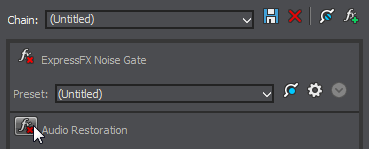
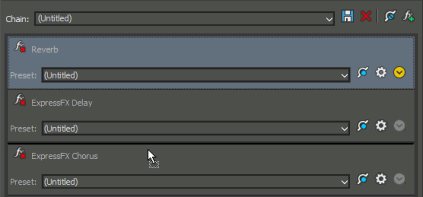
  • To reorder the plug-ins within the chain, simply drag a plug-in button to a new location, or click the Shift Plug-In Left or Shift Plug-In Right buttons.

  1. Once you have added all of the plug-ins and specified the plug-in chain order, click the OK button.

Adding a plug-in from the Plug-In Manager

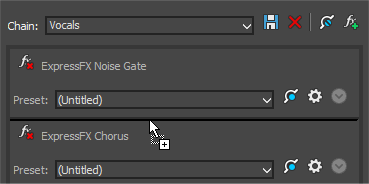
You can add a plug-in to a chain quickly by dragging it from the Plug-In Manager to the Plug-In Chain window. Drop the plug-in at the position where you want to add it to the chain:

Removing a plug-in

Click the Remove Plug-In button.

Editing a plug-in chain

  1. From the View menu, choose Plug-In Chain.

  2. Choose a preset from the Chain drop-down list.

  3. To bypass a plug-in without removing it from the chain, select the effect's Bypass button .

  1. To reorder the plug-ins within the chain, simply drag a plug-in button to a new location.

  2. Click the Show Plug-In Window button to display the effect's parameters in a separate window. For more information about using specific plug-ins, click the Plug-In Help button.

Set a plug-in's propertiesClosed

Click the Show Plug-In Window button to display the effect's parameters in a separate window. For more information about using specific plug-ins, click the Plug-In Help button.

TIP You can have multiple plug-in windows open in the Sound Forge Pro workspace. To quickly close all open plug-in windows, right-click a plug-in in the Plug-In Chain window and choose Close All Plug-In Windows from the shortcut menu.

Load an effects chain or plug-in presetClosed

Loading a plug-in chain preset

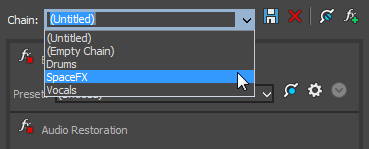
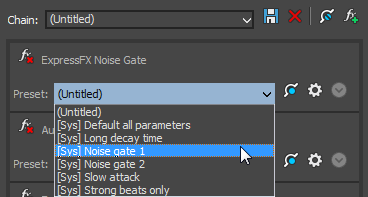
Choose a setting from the Chain drop-down list. The preset chain is loaded using the saved settings for each DirectX and VST plug-in in the chain.

Loading a preset for an individual DirectX plug-in

Choose a setting from the Preset drop-down list. The plug-in settings stored in the preset are loaded.

Loading a preset for an individual VST plug-in

  1. Click the Show Plug-In Window button to display the effect's parameters in a separate window.

  2. Click the Open VST Preset button .

    The Open VST Preset dialog is displayed.

  3. Browse to the .fxp file that you want to use.

  4. Click the Open button.
    The current VST preset is replaced with the settings stored in the .fxp file.

Loading a bank of VST plug-in presets

  1. Click the Show Plug-In Window button to display the effect's parameters in a separate window.

  2. Click the Open VST Bank button .

    The Open VST Preset Bank dialog is displayed.

  3. Browse to the .fxb file that you want to use.

  4. Click the Open button.
    All presets for the current VST plug-in are replaced with the settings stored in the .fxb file, and the first preset in the bank is loaded by default.

Preview the effects chainClosed

Effects from the Plug-In Chain are previewed in real time when you play back a file.

To hear the results of your effects chain without applying it to the sound file, click the Play Normal button in the data window's playbar.

You can select the Bypass button in the Plug-In Chain to bypass all effects in the chain, or select the Bypass button for an effect to bypass individual effects.

Apply the effects chainClosed

Effects from the Plug-In Chain are applied when you save the file.

Save the plug-in chain as a presetClosed

When you save a plug-in chain, the order of the effects in the chain and the settings for each plug-in are saved with the chain.

Effect automation envelope points are not saved with presets. If you are using effect automation envelopes and save a preset during playback, the effect's settings at the playback cursor position are saved.

  1. Add plug-ins to the chain.

  2. Adjust each plug-in's properties.

  3. Type a name in the Chain box.

You cannot modify default presets.

  1. Click the Save Chain Preset button .

Save the settings from an individual plug-in as a preset Closed
Effect automation envelope points are not saved with presets. If you are using effect automation envelopes and save a preset during playback, the effect's settings at the playback cursor position are saved.

Saving a preset for an individual DirectX plug-in

  1. Click the Show Plug-In Window button to display the effect's parameters in a separate window.

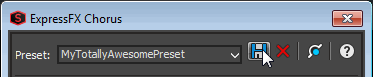
  2. Type a name in the Preset box.

  3. Click the Save Preset button :

Saving a preset for an individual VST plug-in

  1. Click the Show Plug-In Window button to display the effect's parameters in a separate window.

  2. Click the Save VST Preset As button .

    The Save VST Preset dialog is displayed.

  3. Browse to the folder where you want to save the .fxp file and type a name in the File name box.

  4. Click the Save button. The current plug-in settings are saved in the .fxp file.

Saving a bank of VST plug-in presets

  1. Click the Show Plug-In Window button to display the effect's parameters in a separate window.

  2. Click the Save VST Bank As button .

    The Save VST Preset Bank dialog is displayed.

  3. Browse to the folder where you want to save the .fxb file and type a name in the File name box.

  4. Click the Save button. All presets for the current plug-in are stored in the bank.

Plug-In Chain shortcutsClosed

If you want to make your editing really fast, the Plug-In Chain can be controlled using keyboard shortcuts.