Video tutorial
Video tutorial
Create simple titles or animated graphics using Vegas text tools and Title Studio.
Using the Titles & Text plug-in
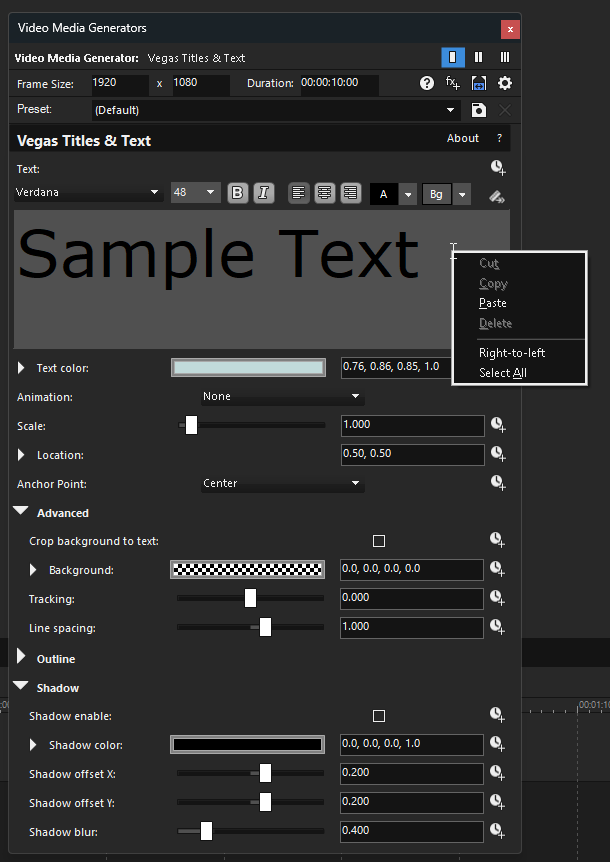
When you add the Titles & Text plug-in to your project, the Video Media Generators window opens. Use its controls to adjust the appearance of your text.
Use keyframe animation to animate any plug-in control. Click a control's Animate button  to create keyframes at the bottom of the Video Media Generators window.
»For further information: Keyframe animation
Text and character formatting
|
Item |
Description |
|---|---|
|
Text |
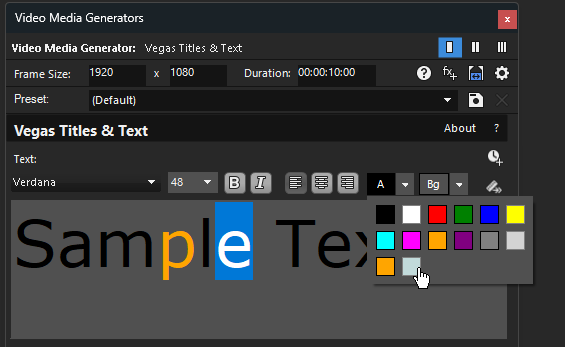
Type your text in the text box. Use the controls above the text box to set the typeface, font size, bold or italic properties, and justification. Select individual characters to configure their foreground and background color. TIP Right-click the text box to display a shortcut menu with Cut, Copy, Paste, Delete, and Select All commands. TIP
To use a light gray editor background, right-click the text box and select Light Editor Background. This setting affects only the editor. It does not change the generated title, video preview, or rendered output. |
|
Writing direction |
Right-click the text box to display the shortcut menu. Choose Right-to-left to use right-to-left writing.
|
|
Text color |
Use the text color controls in the toolbar to choose a foreground color. Select individual characters before choosing a color to apply it only to those characters. The color palette includes a Custom color option.
You can use the color picker, type color values (or names), or use the eyedropper to sample a color from your screen. |
|
Animation |
Choose a setting from the drop-down list to apply animation effects to your text. |
Position, background, and spacing
|
Item |
Description |
|---|---|
|
Scale |
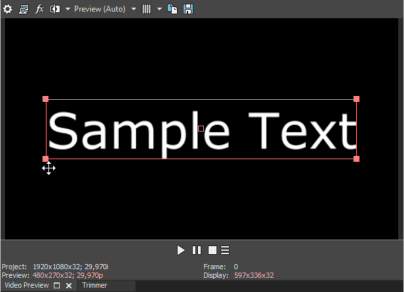
Drag the slider to adjust the size of your text. A setting of 1 applies no scaling; drag to the right to enlarge the text, or drag left to shrink the text. When your text event is selected in the timeline, you can drag the corners of the text box in the Video Preview window to scale it:
|
|
Location |
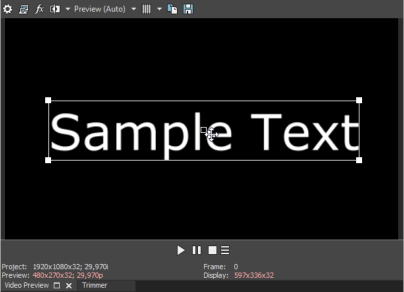
Click the arrow Perform any of the following actions to position the text within your project's video frame:
|
|
Anchor point |
Choose a setting from the drop-down list to set the anchor point of the text box. Text scales relative to the anchor point, which does not move. The anchor point is identified by an empty square in the Video Preview window. |
|
Advanced |
Click the arrow |
|
Background |
Use the background color controls in the toolbar to choose a background color. Select individual characters before choosing a color to apply it only to those characters. The color palette includes a Custom color option. You can use the color picker, type color values (or names), or use the eyedropper to sample a color from your screen. |
|
Tracking |
Drag the slider to adjust the amount of spacing between text characters. |
|
Line spacing |
Drag the slider to adjust the amount of spacing between lines of text. |
 to show or hide the text location controls.

 The coordinates 0.00, 0.00 represent the lower-left corner of the frame. The coordinates 0.50, 0.50 represent the center. The coordinates 1.00, 1.00 represent the upper-right corner.
Outline controls
|
Item |
Description |
|---|---|
|
Outline |
Click the arrow |
|
Outline width |
Drag the slider to specify the width of the outline. |
|
Outline color |
Click the arrow Use the color picker, type color values, or use the eyedropper to sample a color from your screen. |
Shadow controls
|
Item |
Description |
|---|---|
|
Shadow |
Click the arrow |
|
Shadow enable |
Select the checkbox to display a shadow behind your text. |
|
Shadow color |
Click the arrow You can use the color picker, type color values (or names), or use the eyedropper to sample a color from your screen. |
|
Shadow offset X |
Drag the slider to offset the shadow from the horizontal center of your text. |
|
Shadow offset Y |
Drag the slider to offset the shadow from the vertical center of your text. |
|
Shadow blur |
Drag the slider to determine how smoothly the text shadow blends into the background. |
Last modified on October 20, 2026
Was this page helpful?
What did you particularly like about this page?
What did you dislike about this page?
Thank you for your feedback.