Video tutorial
Video tutorial
Create simple titles or animated graphics using Vegas text tools and Title Studio.
Creating text and titles
Most video projects include titles and credits. Add text with the included plug-ins, or create a text image in an external image-editing program.
Add text with the Titles & Text plug-in
Create a Titles & Text event
-
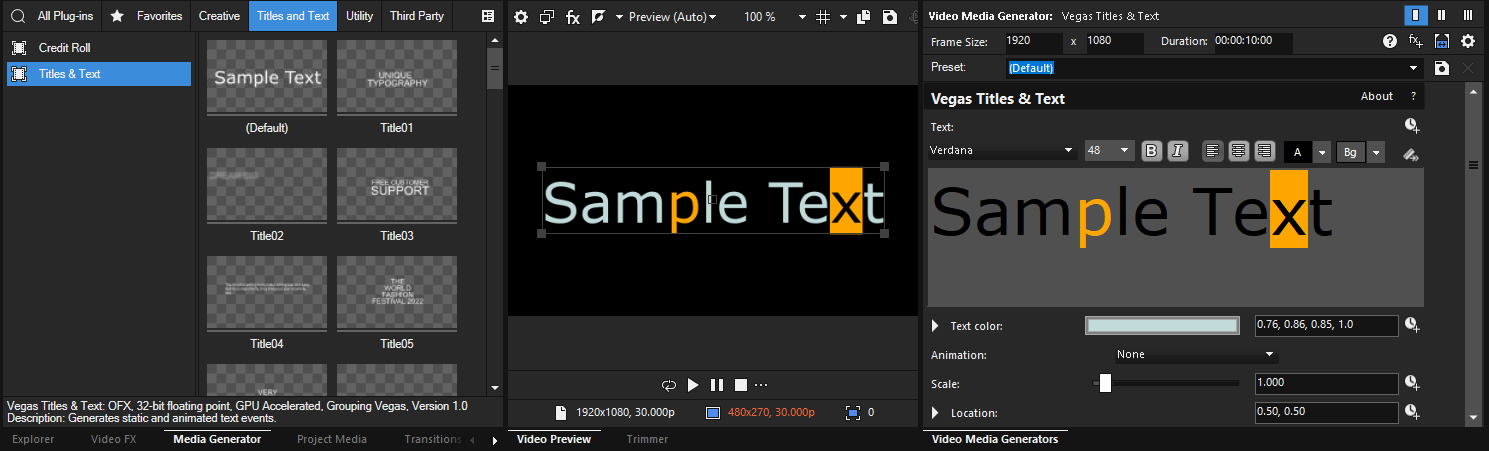
Choose View | Window | Media Generators to display the Media Generators window.
-
In the left pane, select the Titles & Text plug-in. The right pane shows the available presets.
-
Drag a preset to a position on the timeline to create a generated media event.
TIP If you want text to appear as an overlay, add it to a track above the video you want to overlay and use a transparent background.»For further information: Compositing and masks
-
Use the Titles & Text plug-in controls to edit the appearance of your text. For control descriptions, see Using the Titles & Text plug-in
Transfer text properties
Use the attribute-transfer button in the Titles & Text text editor. It copies supported attributes from one event to all other Titles & Text events on the same track. Use it to keep repeated titles consistent without replacing their text.
-
Make sure that at least two Titles & Text events are on the same video track.
-
Select the event whose attributes you want to copy.
-
If the Video Media Generator window is closed, click the Generated Media button for the selected event.
-
In the text-editing toolbar, click the attribute-transfer button
 .
The other Titles & Text events now use the copied attributes. Their text content remains unchanged.
NOTE To revert the transfer, click the Undo button.
Add text and titles with the ProType Titler
NOTE The ProType Titler is Deprecated Features and hidden by default.
With the ProType Titler, you can create static text, animated text effects with splined paths, per-character animation, and advanced curves. Add shadows, glows, blurs, and gradients for unique text treatments.
-
Choose View | Window | Media Generators to display the Media Generators window.
-
In the left pane, select the ProType Titler plug-in. The right pane shows the available presets.
-
Drag a preset to a position on the timeline to create a generated media event.
TIP If you want text to appear as an overlay, add it to a track above the video you want to overlay and use a transparent background. »For further information: see Compositing and masks
-
Use the ProType Titler plug-in controls to edit the appearance of your text.
You can use animation in the ProType Titler to create scrolling and crawling credits.
»For further information: Working with the ProType Titler
Create a title from a graphic
Title images can be created in almost any editing program. The following general procedure explains how to create titles with a transparent background.
TIP You can use track motion to animate titles created from still images. »For further information: Editing track motion
-
Start your image-editing application.
-
Create a new image and set the dimensions of the new image to be the same as the frame size for the project.
-
Make the default canvas (background) transparent.
-
Select the Text tool and type the text for your title.
NOTE Size and position your titles carefully to fit within the Title Safe Area, or the titles may extend beyond the edges of your television. »For further information: Using the Video Preview window
-
Save the file as a PNG, PSD, or TGA file (PNG is recommended). Make sure that you save the alpha channel information, which will be used for transparency.
-
Add the image as an event to the track above the track containing the background.
-
Click the Compositing Mode button
 to set the title track to Source Alpha (default).
-
NOTE
-
If your title is saved as a TGA image, the alpha channel may not be detected automatically. Use the Media Properties dialog and choose a new setting from the Alpha channel drop-down list. »For further information: View or change media file properties
-
If your image does not have an alpha channel, you can apply the Chroma Keyer filter to the image to key out the background.
-
Last modified on October 20, 2026
Was this page helpful?
What did you particularly like about this page?
What did you dislike about this page?
Thank you for your feedback.