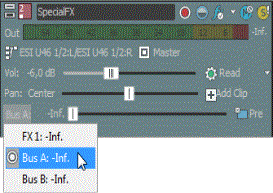
Assigning tracks to busses allows you to apply settings to a series
of tracks or route tracks to a hardware output.
For example, if you wanted to apply the same three effects to several
tracks, you could apply the effects to
a bus and assign the tracks to that bus. If you wanted to send several
tracks to a single hardware output, you could assign the tracks to a bus
and then route the bus to a hardware
output.
The button is displayed as a when the track is routed to the master bus, and the bus letter
is displayed (,
, and so on) when
a track is routed to another bus.
Select the desired bus from
the menu. The Bus
button changes to display the selected bus.
NOTE If the Bus
button does not appear on the track, you have not specified more than
one bus in your project settings.
You can also use the I/O control region in the Mixing console
window to assign a track to a bus. For more information, please see Audio Track Channel
Strips.
TIP
Bus sends are pre-volume by default. In Post Volume mode, the following settings are applied to the track before
it is sent to the bus: track volume, track volume envelopes, track panning,
and track panning envelopes.
To change to post-volume, right-click the fader handle and choose Post Volume from the
shortcut menu.
Click the label on the multipurpose
slider and choose the desired bus from the menu. The label changes to
reflect the name of the bus.
TIP If you can't see the multipurpose slider,
drag the bottom edge of the track header to increase its height.
Drag the fader to adjust the
level of the track sent to the bus.
You can also use the Sends control region in the Mixing
console window to configure bus sends. For more information, please see Audio Track Channel
Strips.
TIP Tips:
Bus sends
are pre-volume (and pre-mute) by default. When bus sends are pre-volume,
you can create a cue
mix that is independent of your main mix. To change to post-volume,
right-click the bus fader and choose Post Volume from the shortcut menu.
If you
want to apply track panning to bus sends (including pan position and panning mode), right click the bus
fader and choose Link to Main Track Pan from the shortcut menu.
When Link to Main Track Pan is not selected, the track sends a center-panned stereo
signal using the track's current panning mode.
Select
the Use legacy track send gain check box on the Audio page of the Preferences dialog
if you want to configure audio track sends to behave as they did in Acid
6.0 and earlier. When the check box is selected, you can open projects
created with earlier versions of Acid and be assured they will sound the
same as they did in earlier versions of Acid.

 when the track is routed to the master bus, and the bus letter
is displayed (
when the track is routed to the master bus, and the bus letter
is displayed ( ,
,
 , and so on) when
a track is routed to another bus.
, and so on) when
a track is routed to another bus.