Creating or Editing Drum Maps

From the Tools menu, choose Drum Map Editor to display the Drum Map Editor dialog.

You can use the Drum Map Editor dialog to create or edit drum maps. A drum map assigns a drum sound to a specific note (so you don't have to remember that C3 is Bass Drum 1, for example). When a drum map is defined for a soft synth, you can use the drum grid in the timeline to edit MIDI data.

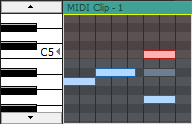
A piano roll allows you to edit MIDI

notes for most patches.

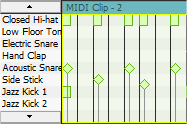
A drum grid allows you to edit MIDI notes

for soft synths that have drum maps defined.

Choose a drum map or kit for a trackClosed

MIDI tracks can display a piano roll or a drum grid.

Choosing a drum map or kit

  1. Click the Program button on the track header.

  2. Choose Drum Maps from the menu, and then choose Select Drum Map from the submenu. The Output Settings page of the Track Properties window is displayed.

  3. Choose the drum map or kit you want to use.

Displaying the piano roll

If your track is routed to a MIDI device or VSTi soft synth, you can switch from a drum grid view to the piano roll. Click the Program button , choose Drum Maps, and then choose None.

Edit a drum mapClosed

  1. From the Tools menu, choose Drum Map Editor to display the Drum Map Editor dialog.

  2. Choose the drum map you want to edit.

  3. Select a drum map in the MIDI Drum Map Template list or click the Open button to browse to an XML drum mapping file.

    TIP Drum maps that belong to the GM2 kits are displayed with a and cannot be edited.

  4. If you want to edit the name of the drum map, double-click the name in the MIDI Drum Map Template column and type a new name in the box.

  5. If you want to associate the drum map with a MIDI device, double-click the Device box and type the name of a MIDI device.

    When you associate a drum map with a MIDI device, the drum maps will be displayed automatically on the Output Settings tab of the Track Properties window when you choose Drum Map from the drop-down list at the top of the page.

    NOTE Be sure to type the device name identically in the Drum Map Editor and the Program Map Editor.

  6. If you want to change the description of the map, edit the text in the Drum Map Description box.

  7. Add keys as needed:

    1. Click the Insert Key button to add a key to the drum map.

      If a key is selected, the next available key will be inserted. For example, if you select C5 and click Insert Key, C#5 will be added if it does not exist in the current drum map. If C#5, D5, and D#5 already exist, E5 will be added.

    2. Double-click the name in the Instrument column and type the name of the instrument associated with the selected key.

  8. Select a key in the table on the right side of the dialog and click the Delete Key button to remove it from the drum map.

  9. If you want to copy key assignments from other drum maps, perform the following steps:

    1. In the MIDI Drum Map Template list, select the drum map that contains the keys you want to copy.

    2. Select the keys you want to copy. Hold Ctrl or Shift to select multiple keys.

    3. Click the Copy Selected Keys button .

    4. In the MIDI Drum Map Template list, select the drum map that you want to edit.

    5. Click the Paste Copied Keys into Map button . Select the keys you want to copy. Hold Ctrl or Shift to select multiple keys.

      If a key is selected, the next available key will be inserted. For example, if you select C5 and click Insert Key, C#5 will be added if it does not exist in the current drum map. If C#5, D5, and D#5 already exist, E5 will be added.

    6. Double-click the name in the Instrument column and type the name of the instrument associated with the selected key.

  10. Click OK to close the dialog and save your changes.