Cutting, Copying, and Pasting Events
Just like a word processor for audio, Acid software will allow you to
cut events, copy events, and paste them into new places.
Select the events you
wish to remove and click the Cut button  (or press Ctrl+X).
The selected events are removed from the track and placed on the clipboard.
(or press Ctrl+X).
The selected events are removed from the track and placed on the clipboard.
If you want to shuffle existing events to fill the space
left by cut events when using a time selection, use ripple
edit mode.
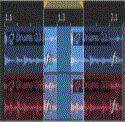
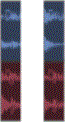
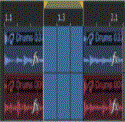
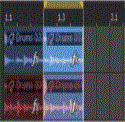
Cutting a time selection
If you cut a time selection,
events across all tracks are removed from the timeline and placed on the
clipboard. Events that extend beyond the time selection are split at each
end of the time selection:
|
|
|
|
|
|
Time selection
|
Clipboard
|
Events after cut
|
Events after cut
(ripple mode)
|
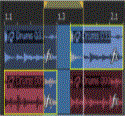
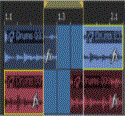
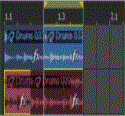
Cutting selected events within a time selection
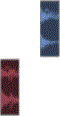
If you cut selected events
within a time selection, the selected events are removed from the timeline
and placed on the clipboard. Selected events that extend beyond the time
selection are split at each end of the time selection:
|
|
|
|
|
|
Time/event selection
|
Clipboard
|
Events after cut
|
Events after cut
(ripple mode)
|
Select the events you
want and click the Copy button  (or press Ctrl+C).
The selected events are copied to the clipboard. You may now paste the
copied events anywhere in the project.
(or press Ctrl+C).
The selected events are copied to the clipboard. You may now paste the
copied events anywhere in the project.
TIP Hold Ctrl
while dragging to create copies of selected events.
Copying a time selection
If you copy a time selection, the portions of events that
are within the selection (across all tracks) are placed on the clipboard:
|
|
|
|
Time selection
|
Clipboard
|
Copying selected events within a time selection
If you copy selected events
within a time selection, the portions of selected events that are within
the time selection are placed on the clipboard:
|
|
|
|
Time/event selection
|
Clipboard
|
Position the cursor and click the Paste button  (or press Ctrl+V).
Events from the clipboard are inserted at the cursor position.
(or press Ctrl+V).
Events from the clipboard are inserted at the cursor position.
Pasted events will sit on top of other events in the track
if they overlap. To make space for pasted events, you can use the Paste Insert command
or turn on ripple edit mode.
In previous versions of Acid, you could only copy and paste
events within the same track. You can use clips
to copy events between tracks: if you select a different track before
you click the Paste
button, the event will be added to the selected track, and a new clip
will automatically be created.
|
|
|
|
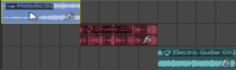
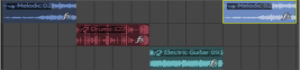
If you copy an event from track 1. . .
|
. . . and paste it into track the same track,
a new event is created on the same track. No clips are created.
|
|
|
|
|
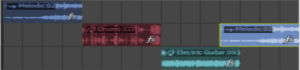
If you copy an event from track 1. . .
|
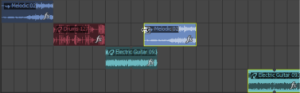
. . . and paste it into track 2, the event from
track 1 is added to track 2, and a new clip is created for the new event.
|
|
|
|
|
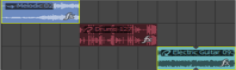
If you copy events from tracks 2 and 3. . .
|
. . . and paste them into track 2, the event
from track 1 is added to track 2, and a new clip is created for the new
event. A new track is created for the event from track 3.
|
From the Edit menu, choose Paste Repeat (or press Ctrl+B) to insert events from the clipboard multiple
times at the current cursor position.
-
Copy events to the clipboard.
-
Position your cursor where
you want to begin pasting the events.
-
From the Edit menu, choose Paste Repeat.
The Paste Repeat dialog box appears.
-
In the Number of times to paste box, enter the number of times you want to paste
the event.
-
Select your options and specify
the settings if applicable:
-
End to End — Pastes the
events one after another with no space between.
-
Even Spacing
Pastes the events
with the time increments specified in the Paste every controls between the starting points of the pasted events.
If the Paste every setting is shorter than the contents of the clipboard, the
pasted events will overlap.—
To insert the contents of the clipboard at the current cursor
position and force existing events to move in time to accommodate the
pasted events, choose Paste Insert
from the Edit menu (or press Ctrl+Shift+V).
NOTE If the cursor is in the middle of an event, the event
will be split at the cursor position when the
new events are pasted.
TIP This feature is useful
when rearranging a project by moving verses and choruses.
