Burning Disc-at-Once (DAO or Red Book) CDs
From the Tools menu, choose Burn Disc-at-Once Audio CD to burn a disc-at-once (DAO) CD using the current CD layout.
Use DAO CDs when you need to create a master disc for mass replication
or want to create a CD without two-second pauses between tracks.
TIP If
you want to burn CD tracks using the media's original tempo rather than
your project tempo, select the track and use the Track
Properties window to change the Acid type setting to One-Shot.
TIP Right-click
the Time Display window, choose Time at Cursor Format,
and then choose Audio CD Time to help you arrange your project. The Time at Cursor portion
of the Time Display window will display tt+mm:ss:ff
(track number +/- minutes:seconds:frames). Audio CD time uses a frame
rate of 75 fps.
-
Arrange your audio files
on the timeline. Use the Track Properties
window to change each track's Acid type setting to One-Shot to burn the media to CD using the
original project tempo.
TIP
If you want to burn a CD using audio from
multiple projects, render each project as a 16-bit, 44 kHz wave file and
add the rendered wave files to a new project.
-
Position the cursor
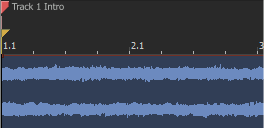
where you want a CD track to begin and choose CD Track Marker from the Insert menu (or press N) to add a CD track
marker at the cursor position. A Red Book CD can contain up to 99 tracks.
When you burn your CD, two seconds of silence will be added before
the first CD track. Subsequent tracks will have silence between them only
if you use the Insert Time command to add
silence before a CD track marker.
NOTE If your first CD track marker is not placed
at the beginning of your project, audio that occurs before that marker
will not be burned to disc.
TIP CD track markers must be at least 4 seconds
apart. Use the Time Ruler to check marker
spacing.
Universal Product Codes (UPC) or
Media Catalog Numbers (MCN) can be written to a CD as a means of identification.
However, not all CD-R drives support this feature. Check your CD-R drive
documentation to determine if your drive will write these codes.
Enter the code in the Universal Product Code / Media Catalog Number box on the Summary tab of the
Project Properties dialog.
Universal product codes are administered
by the Uniform Code Council. For more information, click here.
After arranging your media on the timeline and adding CD
track markers, you're ready to burn.
-
From the Tools menu, choose Burn Disc-at-Once Audio CD. The Burn Disc-at-Once Audio CD dialog is
displayed.
-
From the Drive
drop-down list, choose the CD drive that you want to use to burn your
CD.
-
From the Speed drop-down list, choose the speed at which you want to burn. Max
will use your drive's fastest possible speed; decrease the setting to
prevent the possibility of buffer underruns.
-
Select the Buffer underrun protection check box if your CD recorder supports buffer
underrun protection. Buffer underrun protection allows a CD recorder to
stop and resume burning.
Buffer underrun protection
can create a disc that can be played in CD players but may contain a bit
error where burning stopped and restarted. Consider clearing this check
box when creating a premaster disc.
-
Choose a radio button in the Burn mode box:
|
Item
|
Description
|
|
Burn CDs
|
Begins
recording audio to your CD immediately.
|
|
Test first, then burn CDs
|
Performs
a test to determine whether your files can be written to the CD recorder
without encountering buffer underruns. No audio is recorded to the CD
during the test, and recording begins after the test if it is successful.
|
|
Test only (do not burn CDs)
|
Performs
a test to determine whether your files can be written to the CD recorder
without encountering buffer underruns. No audio is recorded to the CD.
|
-
Select the Render temporary image before burning check box if you want to render
your CD project to a temporary file before recording. Prerendering can
prevent buffer underruns if you have a complex project that cannot be
rendered and burned in real time.
NOTE
The rendered temporary
file will remain until you modify your project or exit the application.
If an image file exists when you open the Burn Disc-at-Once Audio CD dialog,
the check box is displayed as Use existing rendered temporary image.
-
Select the Automatically erase rewritable discs check box if you're burning to rewritable media and want
to erase the disc before burning.
-
Select the Eject when done check box if you want to eject the CD automatically when
burning has completed.
-
Click
OK to start burning.
