The Explorer Window
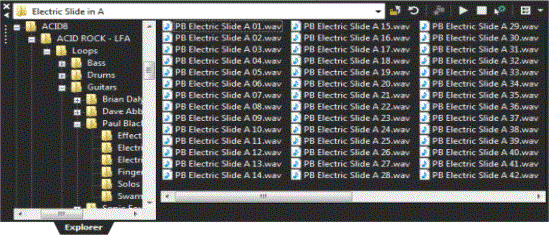
The Explorer window allows you to view and access your media files without leaving the Acid workspace. You may preview media files and place media files in your project from the Explorer window.
From the View menu, choose Explorer to toggle the display of the window.
NOTE You
can also use the Get
Media from the Web  to find media to use in your project.
Learn more about the
Explorer window

|
Item |
Name |
Description |
||||||||
|
|
Address Bar |
Displays the current folder. You may also specify a file type to display. To specify a file type, make sure that All Files is not selected in the Views button menu and click in the combo box. Type the wildcard followed by the extension. For example, *.wav or ?intro?.avi |
||||||||
|
|
Tree View |
Displays all of the available files and folders where you can find media files. |
||||||||
|
Contents Pane |
Displays the folders and media files contained in the active folder. |
|||||||||
|
|
Up |
Opens the folder one level above the active folder. |
||||||||
|
|
Refresh |
Refreshes the contents of the active folder. If you insert a new CD (or other removable media), click to refresh the Explorer. |
||||||||
|
|
Adds the selected folder to the My Favorites folder for quick access. |
|||||||||
|
|
Start Preview |
Plays the selected media file. |
||||||||
|
|
Stop Preview |
Stops the playback of the selected media file. |
||||||||
|
|
Auto Preview |
Automatically preview media files when you click them in the Explorer window. |
||||||||
|
|
Views |
Allows you to change the way the files are viewed in the list view.
|



Preview a file
If the Auto Preview button  is selected, you can click a file
in the Explorer window to preview it. Click the Stop Preview button
is selected, you can click a file
in the Explorer window to preview it. Click the Stop Preview button  to stop the preview, or turn off the preview feature by deselecting
the Auto Preview button.
to stop the preview, or turn off the preview feature by deselecting
the Auto Preview button.
When the Auto Preview button is not selected, click the Start Preview button  to hear a loop.
TIP You can preview loops during project playback to help you decide which loops work well together. Begin by playing the project, and then select any loop to preview. The selected loop will play in sync with the rest of project. If you like the loop, double-click it to add it to the project. If you do not like the loop, simply choose another to preview.
NOTE Very small files that have not been optimized may not preview correctly. If the file’s tempo is not estimated correctly, it must be optimized first for proper results.
Preview multiple selected files sequentially
When the Enable multiple-selection preview in Explorer window check box is selected
on the Other tab of the Preferences
dialog (Audio tab in Acid Music Studio
software), you can select multiple files in the Explorer, and they will
be played back in order when you click the Play button (or
when the Auto Preview
button is selected).
Each file's icon will change to a play icon during playback. Press Ctrl+Enter to add
the currently playing file to the timeline, or press Enter to add all
selected tracks.
TIP Tips:
-
Use the Other tab in the Preferences dialog (Audio tab in Acid Music Studio software) to indicate how long each file should play.
-
When you're playing back a selection in looped playback mode, this feature will help you find the perfect loop to match your project.
Adjust preview volume
Drag the Preview fader in the Mixing Console window to adjust preview volume.
This setting also controls the loudness of media played through the Chopper window and Beatmapper Wizard. When adding media to the project, the new track's volume is set to the preview volume.
NOTE If the Preview fader is not displayed, right-click the Mixer and choose Show Preview Fader from the shortcut menu.
Add tracks to a project or add clips to a track
Adding tracks
Double-click a file in the Explorer or drag it to an area of the timeline that does not contain a track to add it to your Acid project and create a track.
Right-click and drag a file to the timeline or track list to specify the type of track that will be created. When you drop the file, a shortcut menu is displayed that allows you to choose whether the file will be treated as a loop, one-shot, Beatmapped track, or as an autodetected type.
NOTE Until you set a default track volume in the Set Default Track Properties dialog, the setting of the Preview fader will determine the volume of new tracks.
Adding clips
Drag a file from the Explorer to an existing track in the timeline to create a new clip and set the new media file as the active clip.
TIP Tips:
-
Before using long media (one-shots or Beatmapped tracks) from CDs or shared network folders, copy the media to your local drive for the best possible performance.
-
To add multiple files to the timeline, Ctrl+click (or Shift+click) to select the files and drag them to the timeline or track list.
-
To add a track from an audio CD, browse to your CD drive and double-click a .cda file (or drag it to the timeline). The track is extracted from the CD and added as a track in your Acid project.
-
When a media file is added to a project from a removable device, a copy of the media file is stored in a subfolder within a temporary files folder. This keeps the media file available for use even if the source of the media is no longer accessible.
Be aware that these subfolders are cleared when you close then application. However, they are not cleared if the application closes inappropriately.
Add multitrack/multichannel MIDI files
Adding MIDI files to your Acid project is just like adding audio: you can double-click a MIDI file to create new tracks and events, or you can drag a MIDI file to an existing track to add a new clip.
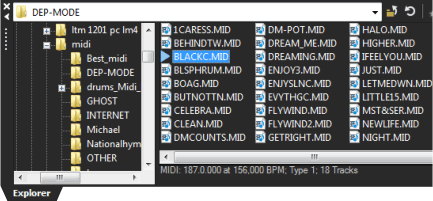
NOTE When you select a MIDI file in the Explorer window, its length, tempo, type, and number of tracks are displayed at the bottom of the window:
NOTE
When you right-click a MIDI file in the Explorer window, you can choose how you want to add it to your project:
|
Command |
Description |
|
Add to Project |
Adds the file to the current Acid project and adds tracks to the track list. No events are created.
TIP When you draw events after adding a file to your Acid project, MIDI controller data is not added to the timeline. Right-click an event and choose Create Envelopes from Clip from the shortcut menu to represent MIDI controllers as envelopes on the timeline. |
|
Add to Project with Events |
Adds the file to the current Acid project at the cursor position, adds tracks to the track list, and creates events for the MIDI note data on each track. Envelopes are added to the tracks to represent MIDI controller data.
|
|
Add to Project with Events Rippled |
Adds the file to the current Acid project at the cursor position, adds tracks to the track list, and creates events. Existing events are shifted downstream to make room for your MIDI file. Envelopes are added to the tracks to represent MIDI controller data.
|
|
Open as New Project |
Starts a new project, adds tracks to the track list, and creates events for the MIDI note data on each track:
TIP When you draw events after opening a MIDI file as a new project, MIDI controller data is not added to the timeline. Right-click an event and choose Create Envelopes from Clip from the shortcut menu to represent MIDI controllers as envelopes on the timeline. |
Use the My Favorites folder
Select the My Favorites
folder  or choose
My Favorites
from the Address Bar to view the contents of the My Favorites folder.
This folder contains shortcuts to folders that you use often.
or choose
My Favorites
from the Address Bar to view the contents of the My Favorites folder.
This folder contains shortcuts to folders that you use often.
Adding a folder to the My Favorites folder
-
Browse to the folder you want to add.
-
Right-click the folder and choose Add Folder to My Favorites from the shortcut menu. A shortcut to the folder is created.
Removing a folder from the My Favorites folder
-
Select the My Favorites folder.
-
Right-click the folder you want to delete and choose Delete from the shortcut menu.
NOTE Deleting a folder from My Favorites deletes only the shortcut to the folder; the target folder is unaffected.
Last modified on July 09, 2026
Was this page helpful?
What did you particularly like about this page?
What did you dislike about this page?
Thank you for your feedback.