Using External MIDI Devices

If you have external MIDI devices such as MIDI controllers or hardware synthesizers, Acid software can use those devices for playing back or recording MIDI tracks.

TIP

Real-time MIDI monitoring must be enabled to allow Acid software to communicate with the MIDI port. Real-time MIDI monitoring is enabled by default, but if you've turned it off, you can turn it on again by choosing Enable Real-Time MIDI from the Options menu.

When the Enable Real-Time MIDI command is selected, audio plug-ins continue running even when playback is stopped. Turning the command off can conserve processing power, but input from external MIDI controllers will be ignored.

Enable MIDI devices Closed

  1. Install your device and any required drivers according to the manufacturer's instructions.

  2. From the Options menu, choose Preferences. The Preferences dialog is displayed.

  3. Select the MIDI tab.

  4. In the Make these devices available for MIDI track playback and Generate MIDI Clock box, select the check box for each MIDI device that you want to use as a MIDI output for MIDI tracks and generating MIDI clock.

  5. In the Make these devices available for MIDI input box, select the check box for each MIDI device that you want to be available for recording MIDI and controlling soft synths.

Set a track's input device Closed

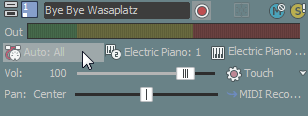
Click the MIDI Input button in a MIDI track header and choose the MIDI device and channel you want to use.

For more information about setting a MIDI track's input device, please see Recording MIDI.

Route a track to a MIDI device Closed

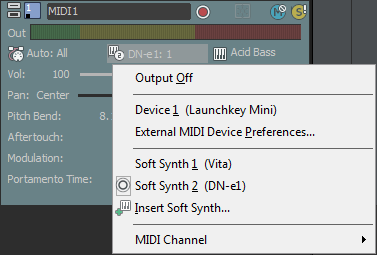
Click the MIDI Output button in a MIDI track header to choose the MIDI device and port you want to use.

For more information about routing MIDI tracks, please see Routing Tracks to Soft Synths or MIDI Devices and Using Input Busses with Hardware-Based Synthesizers.


Play a soft synth with a MIDI deviceClosed

  1. Double click a soft synth icon in the Mixer window. The Soft Synth Properties window is displayed.

  2. In the Soft Synth Properties window, click the External MIDI Input Port button and choose a port from the menu.

    If the port you want to use isn't selected, you can choose External MIDI Device Preferences to display the MIDI tab in the Preferences dialog, where you can make devices available for MIDI input.

NOTE Notes:

  • Step 2 is necessary only if the Auto MIDI input routing check box on the MIDI tab of the Preferences dialog is not selected.

  • If you're using a VSTi soft synth, select the Enable button on the Soft Synth Properties window to allow real-time MIDI playback.

  • Play your MIDI controller, and it will use the current program settings from the Soft Synth Properties window.

Set MIDI thru portsClosed 

If you want notes received from a MIDI input port to be echoed to a MIDI output port for monitoring, you can set up MIDI thru for any enabled ports:

  • A single MIDI output can have a single MIDI input routed to it.

  • A single MIDI input can be routed to multiple MIDI output ports that will receive MIDI thru data.

  • Sysex messages are not sent to a MIDI thru device.

TIP You can also click the MIDI Input button on the track header and choose Send MIDI Input Thru to MIDI Output from the menu if you want to echo notes from the MIDI controller to the track's MIDI device or soft synth for monitoring during MIDI recording.

  1. From the Options menu, choose Preferences. The Preferences dialog is displayed.

  2. Select the MIDI tab.

  3. Select at least one port in each of the Make these devices available for MIDI track playback and Generate MIDI Clock and in the Make these devices available for MIDI input boxes.

  4. Right-click the MIDI Thru From text box for any selected output port and choose the input port from which you want to receive MIDI thru data from the shortcut menu.

    NOTE Only ports that are selected in the Make these devices available for MIDI input box will be available.

  5. If you want a MIDI input port to send MIDI thru data to multiple output ports, right-click the MIDI Thru To text box for any selected input port and choose the ports to which you want to send MIDI thru data from the shortcut menu.

    NOTE Only ports that are selected in the Make theses devices available for MIDI track playback and Generate MIDI Clock box will be available.