Selecting Objects
Selecting/Unselecting Single Objects
Click on an object to select it. If an object is selected, it changes its background color and handles appear at the corners and in the middle of the object.
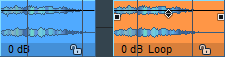
The selection can be canceled by clicking with the Ctrl key held down or by clicking next to the object.
Selecting Multiple Objects/Unselecting Individual Objects/Inverting Selection
-
Select several individual objects by holding down the Ctrl key and clicking on them.
-
To select several consecutive objects, click the first object and then, while holding Shift key, click the last object. This will also select all objects that are between the first and last selected objects.
-
Lasso selection: To select all objects in a certain screen area, left-click in the lower part of a track on a free space and draw a selection frame (lasso) around the objects.
The objects do not have to be enclosed by the lasso, it is enough if they are touched by the lasso.
-
If there is no free space between objects, it is sometimes difficult to drag a lasso without moving an object. In this case, select the menu command Object > Select objects > Object lasso (keyboard shortcut: Ctrl + Alt + L). After that, you can click and drag once in an object without moving the object as usual, but dragging a lasso to select the object. After the selection, the mouse resumes its old behavior: The next click and drag on an object has the usual effect again - the object is moved.
-
To select all objects of a track, double-click in the lower part of a track on a free space.
-
To deselect a single object of a multiple selection, click on it while holding the Ctrl key.
-
To deselect all objects, click in a free area in the lower part of a track next to the objects. Also if you click on an object that has not been selected so far, the existing selection will be canceled and the new object will be selected.
Note: The phrase "into the lower part of the track" refers to working with the Universal mouse mode. In this mode, ranges are selected in the upper part of the track. In other mouse modes (object mode, object/curve mode) the entire track can be used.
More Commands for Object Selection in the Menu Object > Select Objects
-
Select objects under play cursor/range: All objects located under the play cursor or within a selected range will be selected.
-
Select all objects: All objects in the project are selected.
Keyboard shortcut: Ctrl + A
-
Select previous/next object: With these commands you can navigate through the objects of a track with the keyboard. In conjunction with the keyboard commands for moving objects step-by-step and changing object start, fade, and length, you can edit the objects completely keyboard-controlled.
Keyboard shortcut: < / > or Ctrl + Alt + Q / Ctrl + Alt + W
-
Add previous object/next object to selection: This adds the previous or next object of the track to the selection.
Keyboard shortcut: Ctrl + Alt + Shift + W / Ctrl + Alt + Shift + W
-
Toggle selection: An existing object selection can be reversed (inverted). This means that all unselected objects will be selected and all selected objects will be deselected.
-
Remove object selection: This allows you to cancel the object selection without a mouse click.
Keyboard shortcut: Ctrl + Shift + A