The MPC - MIDI Playable Chopper
As long as the chopper window is open, you can play sections of an audio clip with an external MIDI hardware like a drum sampler (like that famous one with a quite similar name, for instance).
The sections to play are determined by markers in the audio clip. The sections always go from a marker to the next one, we will call it "slice" from now on.
To play it, you use MIDI notes beginning from C4 (MIDI note number 48) for the first slice from the first to the second marker, C#4 (MIDI note number 49) for the second slice from the second to the third marker and so on.
NOTE Note that it is not important how the markers are numbered or named, the slices are mapped to the note numbers in the order of occurrence in the file. That means, if you add a marker later to split a slice into two, the mapping of the following slices to the MIDI notes change accordingly.
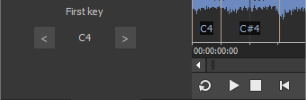 With First Key you can define the note number from where the slice numbering will start.
Playing the Chopper
-
Right-click a clip in the project that you want to play with the Chopper and chose Select in Chopper.... The Chopper window opens with the clip loaded.
NOTE When the Chopper window is already open, it always shows the selected clip.
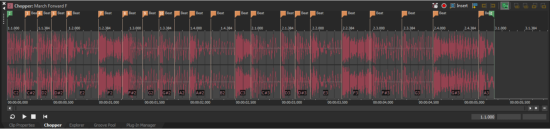
In the loop content that comes with Acid Pro there are often already set stretch markers (called "Beat") at every transient that are used for optimizing time stretching. Acid Pro is not particular about the purpose of a marker and uses these markers also for defining slices to be used with the chopper. Hence lots of drum loops are already sliced "ex factory" and ready to play!
-
By default, the Chopper gets its MIDI input from all available devices (MIDI Input Setting: Automatic). You can change the MIDI input by clicking on the Set MIDI input port button
 . Read Recording MIDIfor more information on setting up MIDI in Acid Pro.
 -
Make sure your MIDI hardware sends notes from C4 (#48) above, on small keyboards you may have to switch the octave down. You can change the MIDI note number under First Note
-
Even if there is no marker defined, one MIDI trigger is already active: You can always play the whole clip from start to end with the first keyboard key (C4, note #48). So hit C4 now and you should hear the whole clip
-
If you want to play just a part of the clip you'll have to set at least one marker at the end of the desired part. To define more slices, you have to set additional markers: You can divide the loop either by a fixed number of markers (Split mode), automatically determine markers based on the transients in the loop (Auto mode) or add markers manually.
Split mode: The loop is divided into a fixed number of sections (typically 2, 4, 8 or 16). You can select the number under Number.
Auto mode: Select the Auto mode and click Start. The audio material is analyzed and a marker is inserted at each transient, i.e. at each recognizable rhythmic event. If too many markers have been created, you can reduce their number by using the Sensitivity slider to raise the detection threshold.
Adding markers manually: If the sensitivity is reduced, markers may be missing in certain areas, but if you increase the sensitivity again, too many markers will appear. In this case leave the sensitivity at the reduced value and insert the missing markers manually. For this, place the cursor in the Chopper at the start of the desired slice and press the M key to add a marker.
TIP To exactly place the cursor at a point of interest it is recommended to switch off snapping. You can do this quickly with the F8 key.
NOTE Note that these slice markers are properties of the Clip Properties and not of the audio file the clip refers to. If you want to keep the markers when you use the audio file in other projects (or even on another track in the same project) you have to the save them to the track's source media file. To do this, change to the Clip Properties window and click the Save button.
-
Now you can play the chopper sections with you MIDI keyboard or trigger pad.
Recording the Chopper
Playing the Chopper works independently from project playback. You can play the Chopper along with the project or just use the MIDI device to select slices and create events with the A and/or Y key (as described above in the Use the Chopper window to create events section).
If the Record  button in the Chopper window is active, an event is immediately created in the selected track at the current cursor position each time a slice in the Chopper window is triggered by MIDI. You can use this to "compose" your arrangement by setting the cursor and placing the events with the MIDI keyboard when project playback is stopped.
TIP Remember you can move around the play cursor by grid marks with the PgUp/PgDn keys.
Or you can record the Chopper slices while playing back the project.
Notes
-
The event creation is velocity sensitive, so the Event gain is set according to how hard you hit the trigger key or button.
-
When you record your MPC live while playing, the Snap to Grid
 setting is taken into account for the event placement, so you effectively have your Chopper playing quantized to the grid.
Make sure a reasonable snap setting is chosen, by default the snap is set to "ruler marks" so when there is a low zoom level, the effective snap value could be just an eight or quarter beat which could lead to quite boring results.
Last modified on July 09, 2026
Was this page helpful?
What did you particularly like about this page?
What did you dislike about this page?
Thank you for your feedback.