Prepare CD Audio
Burning audio CDs directly from the program is no longer possible. However, you can export the project as a Wave file with an accompanying cue sheet (*.cue file). These files can be used by most third-party programs to burn audio CDs.
|
To prepare the active project for burning to an audio CD, select Menu CD > Prepare CD Audio… or click this button on the top toolbar. |
|

The Prepare CD Audio dialog box opens..
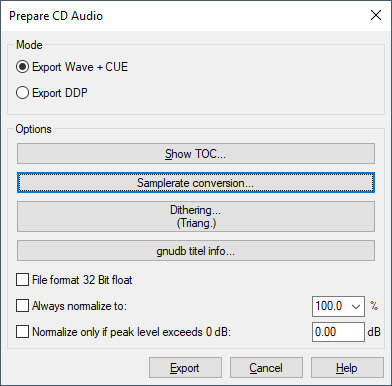
Mode:
-
Select Export Wave + CUE to export a 16-bit wave file from the range between the first CD index marker and the CD end marker (or the end of the project) and a *.cue file. The CUE file contains all the data (track positions, metadata for CD text, ISRC, EAN code, etc.) needed to burn an audio CD from the wave file using most third-party programs.
-
Export DDP: Creates a DDP image for transfer to a pressing plant with the separate program DDP Export.
Options:
-
Show TOC: Samplitudecreates a TOC (Table of Contents) file in the project folder with the name of the current project and the extension *.TOC before writing the CD. This file contains all data about the CD. Show TOC opens a text window where you can format the TOC as a text file with various options and then pass it to an external text editor in *.rtf format.
-
Sample rate conversion: Use this button to switch to the Resampling/Freeze Options.
-
Dithering settings: The bit depth of the audio output must be reduced from 32bit float to 16bit for burning to CD. The Dithering options button displays the dithering mode used for this purpose. You can change it by clicking the button. See Dithering settings.
-
gnudb title info: In case you burned an imported CD and missed the transfer of the CD track information from the gnudb.org database, you can still add this information to the CD track indices with this button.
-
File format 32-bit float : This option exports to the 32-bit file format. This prevents clipping, as levels above 0 dB are also stored in this format. With Always normalize to..., the resulting file is then normalized back to a level <0dB. With the option Normalize only if peak level exceeds 0 dB, normalization only occurs if the peak level is exceeded.
Diese Option ist beim DDP Export nicht verfügbar.
Export… starts the exports.