MIDI Files
MIDI files can be loaded more conveniently like all other media files and projects from the File Manager, where you have an automatic preview function, full text search, favorite folders and more.
Loading MIDI Files
Load standard MIDI files (*.mid) with menu File > Import > Load MIDI file….
For more information on MIDI import, please also refer to the chapter MIDI in Sequoia.
Exporting MIDI Files
With menu File > MIDI Export > Export MIDI File… you export the entire MIDI data of a project into a MIDI file in Standard MIDI File (SMF) format. All changes of the MIDI playback by the track (MIDI section in the track header) and in the MIDI object editor, like transposition or realtime quantization, are taken over into the MIDI file.
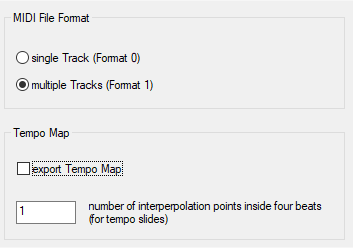
Select the desired MIDI file format: format 0 exports all MIDI data to one track, format 1 saves several tracks in the MIDI file corresponding to the tracks of the project. The track names are adopted.
With Export Tempo Map the tempo map is written to the MIDI file. Since the MIDI file format does not support the continuous tempo progressions from Sequoia, such progressions must be simulated in the MIDI file by many individual tempo entries. You define the accuracy for this by specifying the Number of interpolation points per bar.
The export is always done with the PPQ resolution of the current VIP. The project markers are also exported in the process.
Exporting MIDI Objects
With Menu File > Export MIDI… in the MIDI Editor you can export the MIDI data of a single MIDI object to a file.
With menu File > MIDI Export > Export MIDI objects as individual MIDI files… you export the MIDI data of selected objects into single MIDI files. If multiple objects are selected, the object names of the MIDI objects are always used as file names.
Note that when exporting individual MIDI objects via these functions, changes to MIDI playback by the track (MIDI section in the track header) and in the MIDI object editor, such as transposition or real-time quantization, are not adopted. Drum maps of the tracks are transferred, however, that is, the pitches are changed according to the maps.
MIDI Mixdown
Use Menu File > MIDI Export > MIDI Mixdown… to combine selected MIDI objects into a single new MIDI object. This applies all track and object MIDI effects, just like MIDI export. You can choose to mixdown the selected objects in a selected range or in the whole project.
The new MIDI object is inserted on a new track above the selected track. The objects involved - unlike the equivalent function Range Mixdown for audio - are not removed from the project, you have to delete them manually.
You should only merge MIDI objects from tracks that control the same instrument, since this assignment is track-dependent and will be lost when you mix down to a new track. You must then assign the instrument to the new track again .