Choosing Time Display Options
From the Options menu, choose Time Display and choose an option from the submenu to adjust the Time Display window settings.
To display the Time Display window, choose Time Display from the View menu.
TIP Right-click the Time Display window and choose an option from the shortcut menu.
|
Option |
Description |
||||||||||
|
Position |
When selected, the Time Display window shows the position of the edit or play cursor. The format of the display will depend on the Status Format setting. |
||||||||||
|
When selected, the Time Display window shows incoming MIDI timecode and trigger signals. The current MIDI Input port is set on the MIDI/Sync tab of the Preferences dialog. |
|||||||||||
|
When selected, the Time Display window shows the position of the cursor (relative to the beginning of the playlist) during playback from the Playlist window. The format of the display will depend on the Status Format setting. |
|||||||||||
|
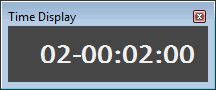
When selected, the Time Display window shows
disc-at-once
CD track numbers. In this mode, the Time Display will show track numbers
and the running time for each track. Negative values indicate the pause
time before a track: |
|||||||||||
|
When selected, the Time Display window shows status for recording. The contents of the Time Display window vary depending on the Method setting in the Record Options window.
TIP You can customize the colors used to display the armed, pre- and post-roll, and recording colors on the Display tab of the Preferences dialog. |
|||||||||||
|
When selected, the Time Display window will only be updated when the processor is idle. Use this when using a slow computer to prevent the audio from glitching. The smallest increments may not be exact, but the major time increments will be accurate. TIP Selecting this option can prevent gapping during playback on slower computers. |
Last modified on June 09, 2026
Was this page helpful?
What did you particularly like about this page?
What did you dislike about this page?
Thank you for your feedback.