Creating and Editing Tracks for a Disc-at-Once CD
A disc-at-once CD requires that you define a track list before burning.

From the Insert menu, choose CD
Track to add a CD track using the current selection as the track
length.
Creating CD tracks
-
Select
the time range (or event) that you
want to use to create a track. A track must be at least four seconds long.
-
From the Insert menu, choose CD Track (or
press N). A CD track is added to the CD layout bar in the data
window:

TIP
You can drag CD tracks to rearrange them, drag either end of
a track to change its length, or use the Track
List window to edit the track's position or name.
Creating CD index markers
You can use index markers to
subdivide a track. For example, in a track that contains an orchestral
composition, index markers could allow navigation to each movement.
Each track on a Red Book audio
CD can contain up to 99 index markers.
-
Click to position the cursor where
you want to add an index marker.
-
From the Insert menu, choose CD Index (or
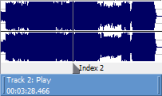
press Shift+N). A CD index marker is added to the CD layout bar
in the data window:

If you're working with a data window that contains multiple
events, you can create CD tracks automatically
using the events.
-
Create events on the timeline to
lay out your CD.
-
From the Edit menu, choose Track List, and then
choose Create CD Tracks
from Events from the submenu. Each event is marked with a CD track.
Tracks are not created for events less than four seconds long.
You can drag CD tracks to rearrange them,
drag either end of a track to change its length, or use the Track
List window to edit the track's position or name.
TIP
When space exists between events, Sound Forge Pro creates separate
tracks for each event. If you want to create a track that spans multiple
events, you can abut or overlap the events to create a single track.
If you have a live recording that uses regions to indicate
the sections of the recording, you can use this feature to create tracks
without having to scan through the audio and create tracks manually.
-
Add regions
as necessary to indicate the tracks in your recording.
-
From the Edit menu, choose Track List, and then
choose Create Tracks
from Regions. Each region is marked with a CD track.
You can drag CD tracks to rearrange them, drag either end of a track
to change its length, or use the Track
List window to edit the track's position or name.
If you have multiple data windows open, you can easily combine
them into a single CD layout.
-
Open
the sound file you want to use for each track.
-
Create a new
data window. We'll use this new window to arrange tracks.
-
Copy your tracks to the new data
window:
-
Switch to the data window
that contains the audio you want to use for your first track.
-
From the Edit menu, choose Select All.
-
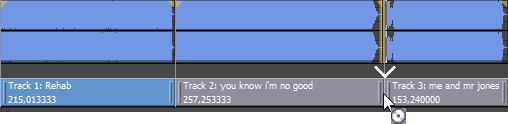
Drag the selected data to the
new data window. While you're dragging, click the right mouse button toggle CD Track
drag-and-drop editing mode. In this mode, the cursor is displayed as a
to show you where the track will be added.
-
Repeat step 3 for each track.
When you drag a file to the CD layout bar at the bottom of a data window.
An indicator is displayed to show you where the track will be added when
you release the mouse. When you drop the file, a track is created, and
is added before the new track.
TIP
If you want to add a CD track without pause time, drag the file
to the waveform display above the CD layout bar.
-
Save the new data window as a Sound Forge Pro project file.
When you save a project file (.frg), Sound Forge Pro software creates a
.frg file and creates a subfolder that contains your media file and all
temporary files created by your editing operations.
-
When you're finished editing tracks,
you can burn your disc-at-once
CD.
TIP
When you create a track using a media file that includes title
and artist metadata, this information will be added to the Track
List window as CD Text.
Dragging files to the CD layout bar
Drag a file to the CD layout bar at the bottom of a data
window. An indicator is displayed to show you where the track will be
added when you release the mouse. When you drop the file, a track is created,
and
is added before the new track.

TIP
If you want to add a CD track without pause time, drag the file
to the waveform display above the CD layout bar. If Options
> Drag-and-Drop Editing > CD Track isn't selected, click
the right mouse button while dragging until the cursor is displayed as
a
to show you where the track will be added.
Dragging files to the Track List window
Drag a file to the Track List window. An indicator is displayed
to show you where the track will be added when you release the mouse.
When you drop the file, a track is created, and pause time is added before
the new track.

Dragging files from the Explorer window
From the Options menu, choose Drag-and-Drop
Editing, and choose CD
Track from the submenu if you want to create disc-at-once tracks
by dragging files from the Explorer window
or Windows Explorer to a data window. Choosing this command has the same
effect as toggle-clicking the right mouse button while dragging until
the cursor is displayed as a
to show you where the track will be added.
When you drop the file, the audio in the data window will
be replaced, and no pause time will be added.
TIP
You can use the Default
time between CD tracks control on the CD
Settings tab of the Preferences dialog to adjust the default pause
time.
In the Open dialog, hold Ctrl or Shift to select the files
you want to open as CD tracks and then select the Open
as CD tracks and
Append to current data window check boxes.
The files will be added to the end of the current data window
and a CD track will be created for each file.
TIP
You can use the Default
time between CD tracks control on the CD
Settings tab of the Preferences dialog to adjust the default pause
time.
If no audio files are open in the Sound Forge Pro workspace,
a new data window will be created when you drop files on the Track List
window.
-
Close all open data windows.
-
In the Windows Explorer or Explorer
window, select the files that you want to include in your CD. You can
hold Shift or Ctrl to select multiple files.
-
Drag the files to the Track List
window.
When you drop the files, a track is created for each file, and
is added before each track.
TIP
Tips:
-
When you create tracks using media
files that include title and artist metadata, this information will be added to the Track List window
as CD Text.
-
You can use the Default
time between CD tracks control on the CD
Settings tab of the Preferences dialog to adjust the default pause
time.
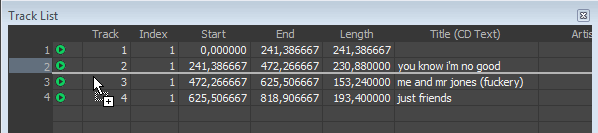
The Track List window is essentially a text representation
of the markers on the CD layout bar.
You can use the Track List window to view track and index
markers, edit track position and length, edit track names, adjust pause
time, toggle protection and emphasis flags, and edit ISRC data.
For more information about using the Track List window,
please see .
You can hide a track at the end of a CD by adding silence
at the end of the last track and adding the new track after the silence.
Drag the end of the final track marker to the new end of the CD.
Because both events exist within a single track, they will
be treated as one track by an audio CD player.
-
Lay out your audio and CD tracks.
-
Insert
silence before the bonus track if desired.
-
Delete the last CD track from the
CD layout bar (if necessary).
-
Drag the end of the final track
marker to the new end of the CD.