Enable Snapping

From the Options menu, choose Snapping and then choose Enable from the submenu to turn automatic snapping on or off in data windows.

Snapping helps you position the cursor, make selections and align items along the grid when you paste, mix, trim, or work with markers and regions.

As you drag items in a data window, snap points are highlighted:
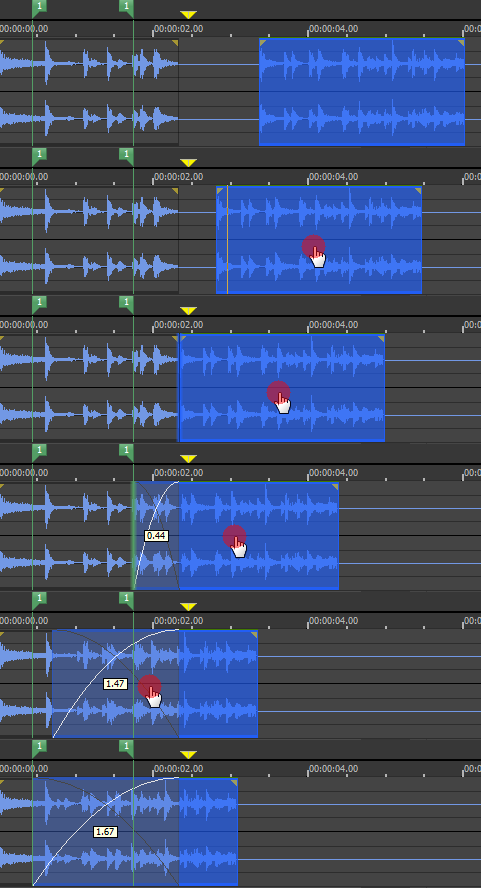
If you want to modify an existing selection, you can use the commands on the Edit > Selection submenu to snap the selection to the grid and to zero crossings.

TIP Hold the Shift key to temporarily override snapping.

In previous versions of Sound Forge Pro, both ends of a selection would snap to the grid when you released the mouse. Sound Forge Pro now uses a softer snapping mechanism that gives you more control: if you click near a grid line with snapping enabled, the cursor will snap to that grid line. As you drag a selection along the timeline, the cursor will stick to grid lines to allow you to snap to them. If you want to snap both edges of a selection to the grid as in previous versions of Sound Forge Pro, you can press T.

Turn snapping on or offClosed

From the Options menu, choose Snapping, and then choose Enable from the submenu (or press F8) to turn snapping on or off. When snapping is enabled, objects will snap to the following points:

  • The cursor

  • Time selection edges

You can also choose to snap events to grid divisions, markers, or zero crossings.

Automatically snap to the gridClosed

When snapping is enabled, you can also choose to have objects snap to whole time divisions as designated by the marks on the time ruler above the data window.

From the Options menu, choose Snapping, and then choose Grid from the submenu (or press Ctrl+F8) to toggle snapping to grid lines.

TIP To change the resolution of the grid, choose Status Format from the Options menu and then choose a setting from the submenu (or right-click the time ruler and choose a format from the shortcut menu).

Automatically snap to markersClosed

When snapping is enabled, you can also choose to have elements in the data windows snap to markers.

From the Options menu, choose Snapping, and then choose Markers from the submenu (or press Shift+F8) to toggle snapping for the following marker types:

Automatically snap to eventsClosed

When snapping is enabled, you can also choose to have elements in the data windows snap to event boundaries.

From the Options menu, choose Snapping, and then choose Events from the submenu (or press Ctrl+Shift+F8) to toggle snapping to event edges.

Automatically snap to zero crossingsClosed

When snapping is enabled, you can also choose to have elements in the timeline snap to zero-crossings.

From the Options menu, choose Snapping, and then choose Crossings from the submenu (or press Ctrl+B) to toggle snapping to zero crossings.

Turn off automatic snapping at high zoom levelsClosed

When you're zoomed in, you may wish to turn off snapping so you can position a selection's start and end points exactly where you choose.

  1. From the Options menu, choose Preferences, and then click the Editing tab.

  2. Select the Disable auto-snapping below 1:4 zoom ratios check box.

  3. Click OK.

Snap an existing selection to the grid or zero crossingsClosed

If you've created a selection without automatic snapping enabled or have modified a selection so its edges no longer align with the grid/zero crossings, you can use the commands on the Edit > Selection submenu to snap the selection to the grid and to zero crossings.