Channel Meters

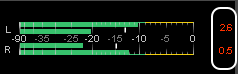
From the View menu, choose Channel meters to show or hide the channel meters. By default, a combined peak level and VU level display is provided in Sound Forge Pro to monitor audio levels.

In addition, further display instruments can be shown. Right-click on the level meters to open the context menu and select a display from it. A check mark is displayed to indicate which meters are currently visible:

The peak meters display momentary levels during playback to help you determine the loudest level in your audio signal and whether the signal is clipping.

To prevent clipping, keep an eye on your peak meters. Peak levels should never exceed 0 dB. The peak level indicators can be calibrated on the Status tab in the Preferences dialog.

Show or hide the Channel Meters windowClosed

From the View menu, choose Channel meters to show or hide the channel meters. You can dock the Channel Meters window on any edge of the Sound Forge Pro workspace.

Reset clip indicatorsClosed

When clipping is detected, the peak meter displays the maximum peak values in red.

To reset the indicator, right-click the level meter and select Reset from the context menu or click the red numeric display.

Change the meters' display resolutionClosed

To change the resolution of the peak meters, right-click the channel meter and select Ranges from the context menu, then select a display range. Choosing a wide range allows you to see low-level signals at the expense of precision display at high levels.

Change the meters' display optionsClosed

You can select whether labels, peaks or valleys are to be displayed in the level displays.

To change the display options of the level meters, right-click on the level meters and select from the options in the menu.

Command Function

Show Labels

Toggles the meter level labels on and off.

Hold Peaks

When selected, the highest peak levels are represented by a thin line on the meter.

Hold Valleys

When selected, the lowest peak levels are represented by a thin line on the meter.

To change the layout of the meters window, right-click on the meters and select Layout from the following options in the context menu.

Command Function

Horizontal/Vertical/Auto

Choose an option to change the orientation of the meters in the Channel Meters window.

Stretch to Fit

When selected, the meters will stretch to fit the size of the window.

Route channels to hardware outputsClosed

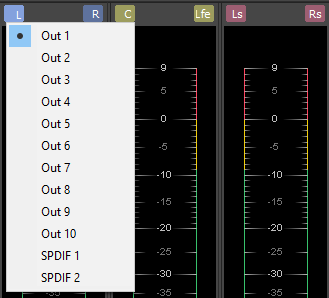
You can change channel assignments from the Audio tab in the Preferences dialog or the Channel Meters window. Changing the setting in either location updates your preferences and affects all open data windows.

To change a channel's output device using the Channel Meters window, click the channel number and choose a new output port from the menu: