Instant Actions

In the Instant Actions window, various frequently used tasks are available as quick shortcuts.
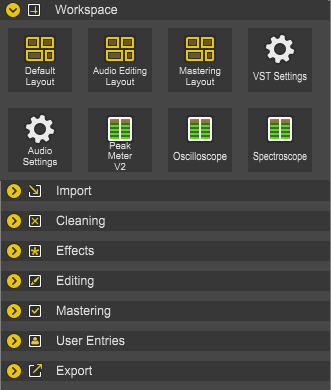
It is split into several sections.

  • Workspace:Closed Here you can access frequently used program preference settings and Window Layouts.

    • Default Layout: Minimal standard layout, only the data windows, instant actions and the level display are open.

    • Audio Editing Layout: In addition to the level meters, the time display is opened.

    • Mastering Layout: In addition, Explorer, the File Properties and the Overview Information are displayed.

    • VST Settings and Audio Settings opens the corresponding tabs VST and Audio in the Preferences dialog.

    • With Level meters, Oscilloscope and Spectroscope you can switch the level display.

  • Import: Here you will find the most important tasks for loading audio into Sound Forge Pro: creating new files and opening existing files, the most recently used files list, the CD import and the recording function.

  • Effects: Here you have access to effects processing by the wizardFX, Ozone Elements and Normalize .

  • Cleaning: Here you will find the cleaning functions of Sound Forge Pro, from the included iZotope RX plugin as Sound Forge Pro's own DeClicker/DeCracler, DeHisser and Denoiser plugin and Noise Gate.

  • Editing: Closed Here you can find scripts for automatic editing of audio files.

    Most functions are also accessible from the Explorer context menu. Using Sound Forge Pro with the Windows Explorer Context Menu.

    Additionally there are the Instant Actions

    • Shorten Silence: This option creates regions over all sections that contain spoken word. A dialog asks for the maximum level of silence and the maximum length of pauses within a region. You can also determine the level of silence by selecting an area in the file that contains silence before performing the action.

    • Word Regions: This option creates regions over all sections that contain spoken word. A dialog asks for the maximum level of silence in between and the maximum length of the pauses within a region. Here, too, the maximum level of silence can be determined by a prior range selection.
    • Batch Converter: Apply effects processing to a number of multiple files automatically. Read more under The Batch Converter
  • Mastering:Closed Here you will find a number of presets for mastering audio material.

    • The first 6 mastering presets (Modern Master, Smooth Limiting...) are presets for the included iZotope Ozone mastering plugin.

    • There are also presets for mastering to the specifications of the Youtube, Spotify and Soundcloud publishing platforms.

  • User Entries: All actions saved in the Batch Processing dialog in the Actions folder appear here.

    Choose Create new Entry to add a new entry. This brings you to the Batch Converter dialog where you create these. »For more information, see The Batch ConverterThe Batch Converter

    In the Action Manager you can define for each Batch Converter preset whether and with which icon it appears in the User Entries area of the Instant Actions or in the Windows Explorer context menu.

  • Export:Closed The most important export functions are available here.

    • Save and Save as...

    • Burn CD

    • Youtube, Spotify, SoundCloud: The file is saved in the format recommended for the respective publishing platform.

      IMPORTANT Sound Forge Pro cannot upload audio files to these platforms, you have to upload it on the web site of the platform!

    • ACX Check: Check, if you audio file complies to the ACX standard with this action.

    • ACX Export: Saves the file conforming to the ACX standard for audio books.

    • Regions: The regions marked in the audio file are exported as individual files. The result files receive the original file name, supplemented by the number and the name of the region.

    • Region list: A list of the regions contained in the file is exported as a text file.

    • Statistics: The function Statistics is executed and the results are saved in a text file.

The areas can be opened and closed individually with a simple mouse click on its name.

To show or hide the Instant Action window, use Menu View > Instant Actions or keyboard shortcut Ctrl + Alt + 6.