The Window Docking Area and Floating Window Docks
The lower half and the right edge of the Acid window are window docking areas. You can use this areas to keep frequently used windows available, but out of the way, while you are working with a project.
You can also create multiple floating docks to organize your Acid windows. These docks can float over the Acid window or if you have a dual-monitor video card on a secondary monitor.
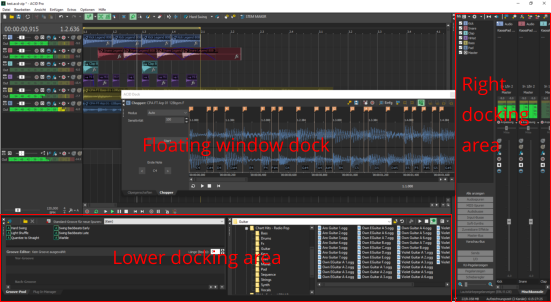
-
To dock a window, drag it to a docking area or a floating dock.
-
To undock a window, click the handle
 and drag it out of the docking area or floating dock.
 -
To prevent a window from docking when you drag it, hold the Ctrl key.
-
To expand a docked window so it fills the docking area, click the Maximize button
 . Click again to restore the window to its previous size.
 -
To remove a window from the docking area, click the Close button
 .
.
You can dock several windows in the same area of the screen, the windows will be layered then. Click a windows tab to bring it to the top.
The Explorer window
The Chopper window
The Mixing Console window
The Video preview window
The Track Properties window (Audio)
The Track Properties window (MIDI)
The Surround Panner window
The Soft Synth Properties window
The Audio Plug-In window
The Plug-In Manager window
The Groove Pool window
The Clip Properties window (Audio)
The Clip Properties window (MIDI)
Last modified on June 30, 2026
Was this page helpful?
What did you particularly like about this page?
What did you dislike about this page?
Thank you for your feedback.