What's new in Sequoia 2026?
The most important improvements of Sequoia 2026 at a glance:
OSC Remote Control Support
The OSC protocol enables remote control of Sequoia over a network without requiring dedicated or proprietary hardware. It works with OSC-capable devices such as large broadcast consoles or StreamDecks, and because OSC is network-based, it does not rely on physical cable connections like MIDI devices. Instead, it can be used over Wi-Fi with custom OSC applications running in any browser on tablets or mobile phones.
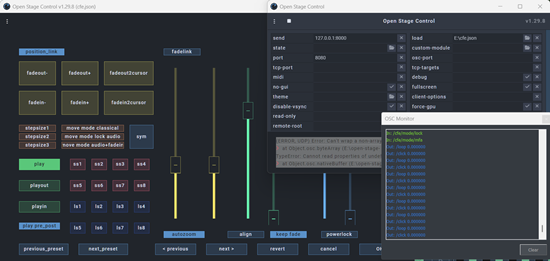
Designing a customized remote control surface with open stage control
The OSC implementation supports customizable control setups, allowing users to build tailored remote-control solutions for studios, live environments, and broadcast workflows. It features bidirectional communication, enabling both sending and receiving OSC messages for dynamic interaction with the control surface. A built-in OSC Monitor provides a message log of incoming and outgoing OSC traffic for testing, debugging, and verification.
Reworked Video Engine with GPU Support
In the completely reworked video engine, the GPU is used for loading and displaying selected video formats, resulting in better performance and improved support for higher resolutions. For this, also the Video options have been updated: The obsolete video overlay option has been removed and new options have been added to disable GPU processing for video import and output. Also the Video cache handling has been optimized and options are added to change the size of the Video cache or disable it completely. The usable video frame rates for SMPTE were extended up to 60Hz. The formats AVC, HEVC, AV1, and Apple ProRes are now also supported.
VST/ARA Improvements
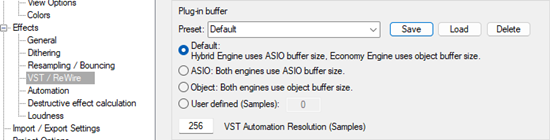
New compatible ARA plug-ins are Melda MTrackAlign and IK Multimedia ReSing. For the general compatibility improvement, we updated the VST3 SDK to version 3.8.0. The plug-in buffer settings in the Program preferences dialog were restructured and contain explanations for the different options now.
Performance Optimizations
Performance has been optimized once again. The Economy engine can now use more than 16 processor cores. That former restriction was lifted, as it was just a workaround for stability issues, which are resolved now. With this, also an improved method of assigning threads to the different cores was introduced to further optimize performance. A VST3 feature to skip silence processing was enabled, which may improve performance with plug-ins supporting it.
FX I/O Matrix
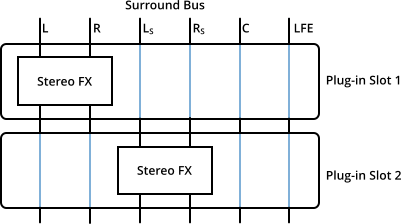
The FX I/O Matrix allows you to distribute the channels of the signal that is sent to a plug-in slot to the input channels of the VST plug-in. The output channels of the VST plug-in can in turn be assigned to the output channels of the plug-in slot. This is helpful, for example, to correct incorrect channel assignments for surround effects in surround buses.
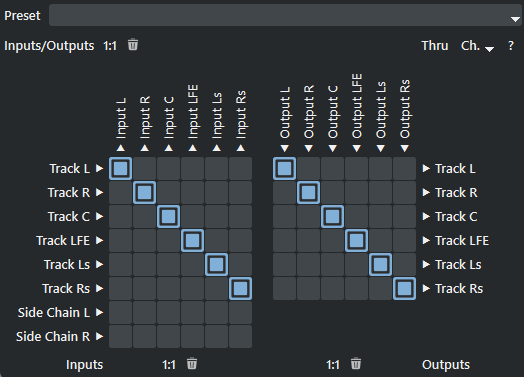
Open it from the "Plug-in" menu of a VST plug-in dialog to route audio channels from tracks to plug-in input channels and plug-in output channels to audio channels from tracks. Activated side-chain inputs can be routed directly to plug-in inputs. This considerably expands the possibilities of signal processing and offers more flexibility in the design of complex audio processes.
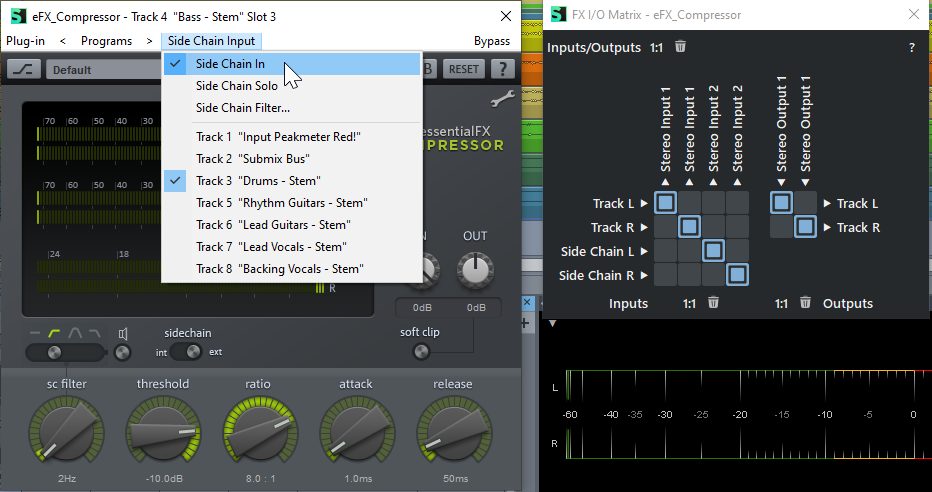
FX I/O matrix with activated side chain
With the Thru option you can, when using stereo plug-ins in a surround bus, route the audio of unused channels unaltered to the outputs. By this you can process the channels of multichannel audio with different plug-ins.
In the Preset menu on top you can save presets for the matrix. As these presets rely on a certain channel configuration (eg. Surround preset) they are saved in sub-folders named after the Surround setup preset used for creating the bus or master. The FX I/O matrix presets that are from this folder are shown in the preset menu and can be loaded by selecting it.
Multichannel and Simultaneous Playback Support for Algorithmix Renovator
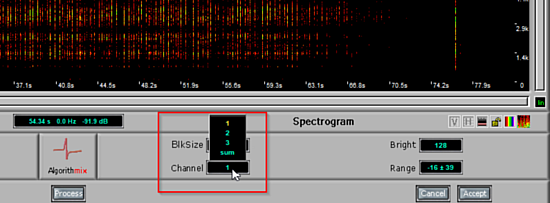
If Sequoia detects a Algorithmix Renovator installation, you can access the command directly by selecting one or more objects, opening the context menu, and navigating to Effects (offline) > Restoration > Spectral Editor - Algorithmix ReNOVAtor (offline). The selected objects will be sent to Renovator and the tool will open. You can now play back your edits directly in Renovator while the project continues to run simultaneously, allowing you to compare your adjustments in context. Edit a single mono object by choosing a channel in the Channel selection menu in the Renovator window or process all selected objects by choosing Sum.
Notes:
-
It's not possible to edit two channels of a stereo file at once when working with more than one object. You can either edit all channels at once, use this with a single stereo track, or edit several single mono tracks separately or all at once. So, to not get confused, avoid using both stereo and mono tracks.
-
Don't use objects with real-time resampling to avoid unpredictable results. In case you want to use audio files with a different sample rate in a project and edit it with ReNOVAtor, use the "convert file - offline resampling" option when importing it.
Soundly database integration
The Soundly database for all kinds of sound effects now integrates with Sequoia.
|
Once the Soundly App is installed, you can open the program via menu File > Open Soundly or a dedicated toolbar icon (hidden by default) directly from Sequoia. In Soundly, Sequoia from the menu at the Send to… button at the bottom right, then import the files into the current project by clicking this button or pressing the S key. In Sequoia, you can select an object and use menu File > Search similar audio in Soundly to look for similar audio in the Soundly database. |
|

Improved Crossfade Editing Workflow
The new crossfade editor doesn’t block the user interface any more. You can access other program areas like track editor, mixer or menu, except the arranger in the back.
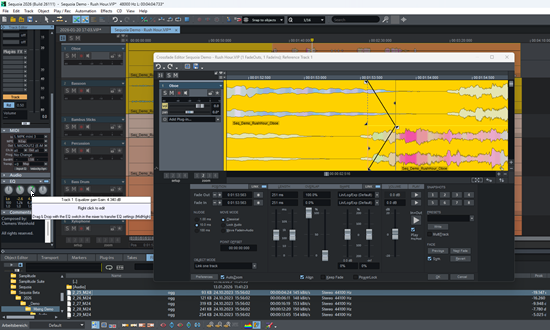
The arranger window in the back is not operable, that's why it is displayed in darker colors.
Quick Crossfade Shapes
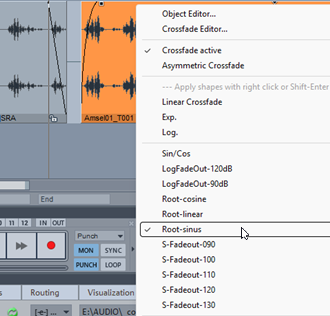
All crossfade shapes are now available in the object fade handle menu, which you can access with right click on the crossfade or a fade handle or the keyboard shortcurt Shift + Context menu key. (Note that for this the quick mouse mode switching shortcut was changed to Ctrl + context menu key). There you have also quick access keys for basic shapes (e.g. L for linear, E for exp…). You can preview the shapes without closing the menu: Move inside the menu with the arrow keys or the mouse and apply a selected shape with right click or Shift + Enter, you can even move in the menu and apply the shapes in one go with Shift + arrow keys, shift + mouse over or PgUp/PgDn.
Auto Mute (Overload Protection)
There is now an automatic mute mechanism when reaching critical levels. If the level of a track or the master exceeds certain levels in a track or the master, the output is automatically muted to prevent damage to amplifiers, speakers, or the user's hearing. Playback or a running recording is not interrupted at first; only a warning dialog is displayed.
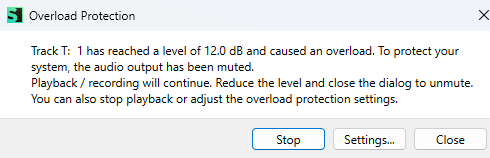
Sequoia can still be operated, allowing you to reduce the levels in the mixer or on the object and close the dialog, which will unmute the output. Stop closes the dialog box and stops playback. Settings… opens the audio settings dialog (Program preferences > System > Audio Setup), where you can set the levels when auto mute gets triggered and disable it for master and track output.
More Improvements
-
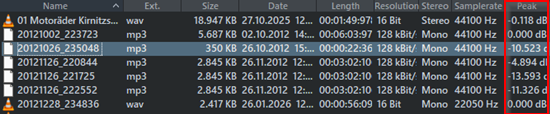
A new context menu command Open in Windows explorer and a new column for peak value display was introduced for the Object Manager, Track Manager, File manager and Clipstore.
-
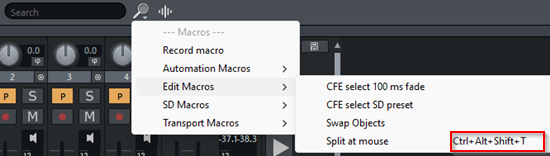
The Macro menu now shows assigned keyboard shortcuts.
-
To prevent accidental fader value changes, there's a new option in Program preferences > Keyboard, Menu & Mouse > Mouse to restrict dragging faders to work on the fader cap only.
-
Improved double click behavior of the vertical scrollbars in the arranger: A context menu entry was added to the scrollbar that makes the display of the clickable free area below the last track to add tracks optional.
-
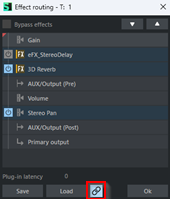
The FX routing dialog now always shows the chain of a selected track or object, there’s a new link button to disable this behavior temporarily.
-
There's a new command to show all automation lanes for the active track.
-
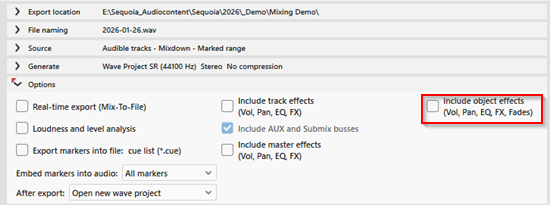
In the Export dialog, an option was added to exclude object effects. This also excludes object volume and fades.
-
A new resampling option was introduced to always create float resolution files when for offline resampling is used. In the resampling dialog, shown when importing files into projects with different sample rate, there's a shortcut button to open the resampling settings.
-
Transferring AUX Send level automation curves to other tracks, either by moving objects with active “Link curves to objects” option or by copy&paste activates the corresponding AUX Sends on the target tracks.
-
Improved marker list export: The marker list export into .csv now uses the order of visible columns in the marker manager. The selection of what data is to be exported is still done in the marker list export options, if this includes columns not shown in the marker manager, these are added at the end, in the order shown in the export options.
-
The Sonoris DDP Player for playing CD images in DDP format has been updated to version 6.