Recording into an Existing Sound File
After you've connected an audio source and verified your recording
setup, you're ready to start recording audio.
Click the Record
button  (or choose Transport
> Record) to
record into an existing sound file (also called punch-in recording).
(or choose Transport
> Record) to
record into an existing sound file (also called punch-in recording).
If you want to record to a new file, please see Creating
a New Recording.
TIP
You can use the Stereo
Recording window layout to optimize
the Sound Forge Pro interface for recording.
The maximum number of channels recorded depends on the data window
where you're recording. For example, if you enabled six inputs on the
Record tab in Audio
Preferences, you need to record into a six-channel data window to
record all six inputs. If you record to a stereo data window, only two
inputs will be recorded.
To choose your recording input, use the Audio
tab in the Preferences dialog or click a channel number in the Record
Options window and choose a new input port from the menu.
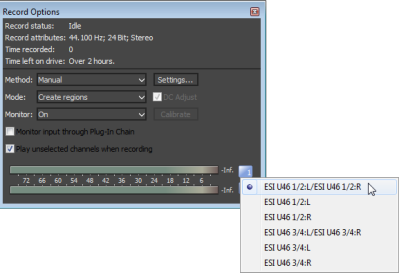
-
Verify that your recording
method is set to Manual.
-
From the View menu,
choose Record Options.
The Record Options window is displayed.
-
From the Method
drop-down list, choose Manual.
-
If you want to set up pre-roll,
post-roll, or a prerecord buffer, click the Settings
button. For more information, see "Set up
pre- and post-roll" or "Set a prerecord buffer" in this
help topic.
-
From the Mode
drop-down list, ensure Normal
or Create new regions
is selected.
-
Select
the sound data you want to replace, or click to position the cursor where
you want to begin recording.
TIP
If you want to check your input levels before or during recording,
you can use the meters.
The peak meters represent the volume of the recording input. For best results,
the peak level should be somewhere in the yellow range with an occasional
red segment: you want your input to be as loud as possible without clipping.
-
Click the Arm button  if you want to begin recording as soon as possible after clicking the
Record button
. The Arm button
is optional, but can allow for more accurate takes. When you click Arm, the wave device
is opened and all recording buffers are loaded in order to minimize the
amount of time between clicking the Record
button and when recording starts.
if you want to begin recording as soon as possible after clicking the
Record button
. The Arm button
is optional, but can allow for more accurate takes. When you click Arm, the wave device
is opened and all recording buffers are loaded in order to minimize the
amount of time between clicking the Record
button and when recording starts.
-
Click the Record
button (or press Ctrl+R). Recording begins,
and the Time Display window and the data
window's selection status bar will show the current record position.
During recording, playback commands, the Preferences dialog,
and commands that affect the recording data window are unavailable.
-
Recording will stop
automatically at the end of the selection. If you're recording without a selection, existing data is overwritten
during recording, and you can click the Record or Stop
button  to end recording. Clicking Pause
  suspends recording, clearing the selection and moving the cursor to the
end of the recorded data. When you pause recording, the recording device
remains armed.
suspends recording, clearing the selection and moving the cursor to the
end of the recorded data. When you pause recording, the recording device
remains armed.
NOTE By default, the cursor goes back to where the recording started after it ends. You can change this by unchecking the Option Rewind cursor position after recording in the Preferences window > General tabGeneral Preferences
-
Verify that your recording
method is set to Manual.
-
From the View menu,
choose Record Options.
The Record Options window is displayed.
-
From the Method
drop-down list, choose Manual.
-
If you want to set up pre-roll,
post-roll, or a prerecord buffer, click the Settings
button. For more information, see "Set up pre- and post-roll"
or "Set a prerecord buffer" in this help topic.
-
From the Mode
drop-down list, ensure Normal
or Create new regions
is selected.
-
Select
the sound data you want to replace, or click to position the cursor where
you want to begin recording.
TIP
If you want to check your input levels before or during recording,
you can use the meters. The peak meters represent the volume of the recording input. For best results,
the peak level should be somewhere in the yellow range with an occasional
red segment: you want your input to be as loud as possible without clipping.
-
Select the Loop Playback button
 .
.
-
Click the Arm
button if you want to begin recording as soon as possible after clicking
the Record button
. The Arm button
is optional, but can allow for more accurate takes. When you click Arm, the wave device
is opened and all recording buffers are loaded in order to minimize the
amount of time between clicking the Record
button and when recording starts.
-
Click the Record
button (or press Ctrl+R). Recording begins,
and the Time Display window and the data
window's selection status bar will show the current record position.
During recording, playback commands, the Preferences dialog,
and commands that affect the recording data window are unavailable.
-
When recording reaches
the end of the time selection, the cursor returns to the beginning of
the selection, and a new take is recorded. Each take is added to the Undo/Redo History window.
-
Click the Record or Stop
button to end recording.
Clicking Pause
suspends recording, clearing the selection and moving the cursor to the
end of the recorded data. When you pause recording, the recording device
remains armed.
-
You can click the Play button  in the Undo/Redo History window to preview individual takes, or you can
use the Undo and
Redo commands
to cycle through your recorded takes while previewing in the data window.
in the Undo/Redo History window to preview individual takes, or you can
use the Undo and
Redo commands
to cycle through your recorded takes while previewing in the data window.
Using pre- and post-roll can help you when recording voiceovers
or overdubs:
-
When you're performing punch-and-roll
recording from the cursor, pre-roll allows you to hear the material before
the cursor position.
-
When you're recording into a selection,
pre- and post-roll allow you to hear the material before and after the
selection.
-
From
the View menu, choose Record
Options. The Record Options window is displayed.
-
From the
Method drop-down
list, choose Manual.
-
Click the
Settings button
in the Record Options window.
-
Select the
Pre-roll check
box and type a value in the edit box to set the amount of time before
the cursor (or selection) that you want to play when recording.
-
Select the
Post-roll check
box and type a value in the edit box to set the amount of time after the
selection that you want to play when recording into a selection.
-
Click the
OK button.
When performing punch-in recording, recording occurs underneath the
pre- and post-roll. If your subject starts early, for example, you can
adjust the event to uncover the recording. You can use the Event Tool
 to slip or trim the edges of the recorded event to expose the recorded
pre- and post-roll. For more information, please see Slipping
and Trimming Events.
to slip or trim the edges of the recorded event to expose the recorded
pre- and post-roll. For more information, please see Slipping
and Trimming Events.
During recording, the Record
status value in the Record Options window indicates that recording
is armed, in pre-roll, recording, or in post-roll. The meters in the Record
Options dialog monitor the level from your recording input.
A prerecording buffer helps to ensure you won't miss a perfect
take when you're recording. When the prerecording buffer is enabled, sound
data is written continuously to the buffer after you click the Arm
button . When you start recording, the sound
data in the buffer is committed to disk.
After you finish recording, the buffer is not displayed
in the window, but you can use the Event Tool to slip or trim the left edge of the recorded
event to expose the buffer. For more information, please see Slipping
and Trimming Events.
-
From the
View menu, choose Record
Options. The Record Options window is displayed.
-
From the
Method drop-down
list, choose Manual.
-
Click the
Settings button
in the Record Options window.
-
Select the
Prerecord buffer
check box and type a value in the edit box to set the duration of the
buffer.
-
Click the
OK button.
Click the Play
button  to review
your recording. Click the Stop
button to end playback.
to review
your recording. Click the Stop
button to end playback.
If you've recorded multiple takes, you can click the Play button
in the Undo/Redo History window to preview individual takes, or you can
use the Undo and
Redo commands
to cycle through your recorded takes while previewing in the data window.
