Data Windows

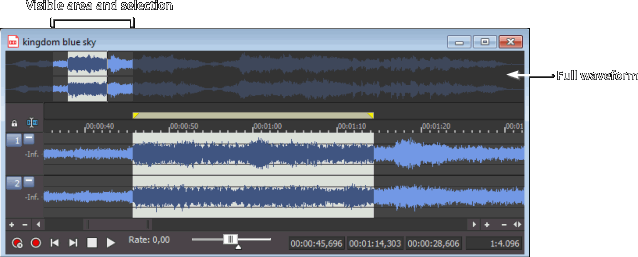
Each sound file is opened in a data window. Each data window shows you a graphical representation of the waveform and other information about the file.
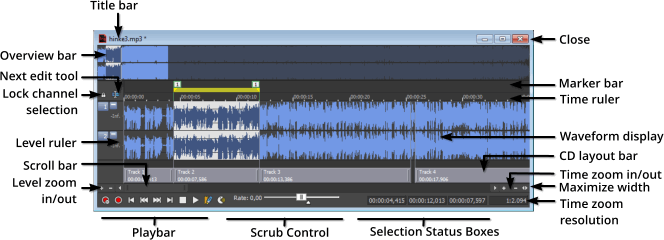
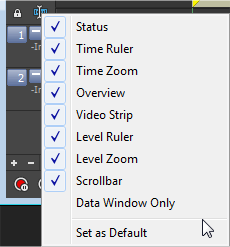
TIP You can quickly toggle the display of portions of a data window (decorations) by right-clicking the Next Edit Tool button and choosing a command from the shortcut menu or choosing Options > Data Window:
Which item do you want to learn about?

Title barClosed

Displays the sound file's title. If no title is specified on the Summary Information window, the file name will be displayed.

Double-click to maximize and restore the window.

Overview barClosed

Allows for quick navigation and playback of any part of the file:

  • The full waveform is displayed in the overview bar.

  • The unshaded portion of the waveform display represents the portion of the waveform shown in the data window. You can drag this portion to navigate the waveform.

  • The current selection is also represented in the overview bar.

  • Click in the overview bar to move the cursor.

  • Double-click to center the cursor in the waveform display.

  • Right-click in the overview bar to toggle playback of the file from the cursor position in the data window.

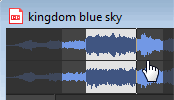
  • To navigate the waveform, you can drag the unshaded portion of the waveform display:

TIP Hold Ctrl and drag the unshaded portion of the waveform display to scrub with the audio event locator.
 

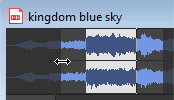
  • To zoom horizontally, you can drag the ends of the unshaded portion of the waveform display:

Video strip Closed

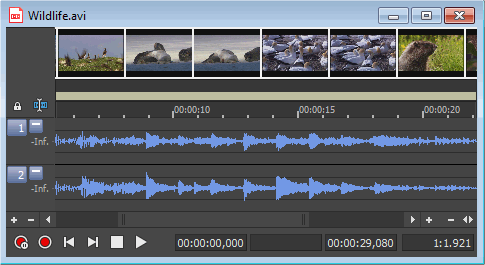
When you open a file that contains a video stream, Sound Forge Pro displays a video strip above the audio waveform to help you navigate the file. For more information about the video strip, click here.

Time rulerClosed

Shows the current location in the data window as well as ruler tags.

  • Right-click to display the time ruler shortcut menu.

  • Drag to scroll the data window.

Next Edit Tool buttonClosed

Click to toggle through the Edit, Magnify, Pencil, Event, and Envelope tools.

The Pencil tool is available only at magnification levels below the Pencil tool maximum zoom ratio setting on the Editing tab in the Preferences dialog.

Minimize channel heightClosed

Click the Minimize button to reduce the height of individual channels, or click the Restore button to restore their height.

Hold Shift while clicking a Minimize button to minimize all channels except for the one you clicked.

Level rulerClosed

Shows the amplitude of the waveform.

  • Right-click to display the level ruler shortcut menu, which allows you to change the zoom level and labels.

  • Drag to shift the view up or down when zoomed in vertically.

CD layout bar Closed

The CD layout bar displays information about the tracks you've created for a disc-at-once CD. Each CD track shows the track's number and length.

Red indicators are drawn at the right end of the CD layout bar to represent the end of the disc (if the disc length is known).

You can use the CD layout bar to perform many of the track-editing functions from the Track List window.

For more information about using the CD layout bar, please see The CD Layout Bar.

Level zoomClosed

To zoom in and out vertically by small increments, click the Level Zoom In/Out buttons, or click and drag the area between the buttons to zoom quickly.

For more information about magnification, please see Magnification and Zooming.

PlaybarClosed

Use the playbar transport buttons to control playback:

Button

Description

Arm: opens the wave device and loads all recording buffers in order to minimize the amount of time between clicking the Record button and when recording starts.

When Create new window is selected in the Mode drop-down list in the Record Options window, the Arm and Record buttons are enabled even when no data windows are open. When Normal or Create regions is selected, the Arm and Record buttons are not available until you create a data window or open a file.

Record: starts and stops recording. For more information, please see one of the following topics:

Go to Start: Moves the cursor to the start of the file.

Go to Previous Track: Moves the cursor to the previous disc-at-once track or index. Hold Ctrl while clicking to skip index markers, or hold Shift to extend a selection.

TIP This button is displayed only if disc-at-once tracks are present in your data window.

Go to Next Track: Moves the cursor to the next disc-at-once track or index. Hold Ctrl while clicking to skip index markers, or hold Shift to extend a selection.

TIP This button is displayed only if disc-at-once tracks are present in your data window.

Go to End: Moves the cursor to the end of the file.

Stop: Stops playback and returns the cursor to its position prior to playback.

Play NormalPlays the file in Normal mode. โ€”

  • If there is no selection, playback occurs from the cursor to end of file.

  • If there is a selection, playback occurs from the beginning of the selection to the end of the selection.

  • Effects from the Plug-In Chain are previewed in real time when you play back the file.

  • To bypass the plug-in chain, bypass the chain in the Plug-In Chain window. For more information, please see "Preview the effects chain" in Using the Plug-In Chain.

Play as Sample Click to set playback to Sample mode. When you click the Play button while in Sample mode, playback will adhere to the following rules:โ€”

  • If the file contains loops, the loops will repeat as many times as specified on the Edit Sample dialog. Use this to listen to a sound file as it would sound when played by a sampler.

  • If the file does not contain any loops, the file will be played once from beginning to end.

This button is not displayed unless a sample loop has been defined in your file.

Play as Cutlist Click to begin playback from the cursor position, skipping any cutlist regions. โ€”

The Play as Cutlist button is not displayed unless you have playlist/cutlist regions defined and have set your playlist/cutlist to Cutlist mode. To use Cutlist mode, choose Playlist/Cutlist from the Edit menu, and then choose Treat as Cutlist from the submenu.

Toggle Wave Coloring Click to switch Wave Coloring on or off.

Vocal Activity Display: Click to activate the Vocal Activity Detection display in the waveform.

Scroll bar Closed

Within the scroll bar, the box represents the portion of the waveform shown in the waveform display. Drag to scroll the sound file forward and backward in time to see parts of the file not currently visible in the waveform display.

TIP You can drag the end of the scroll box to zoom in or out:

Scrub control Closed

Drag the scrub control () at the bottom of a data window to shuttle forward or backward from the cursor position to find an edit point.

TIP Hover over the scrub control and roll the mouse wheel forward or backward.

You can drag the Normal Rate indicator () below the scrub control to adjust playback speed (or double-click the label to type a playback rate).

Selection status barClosed

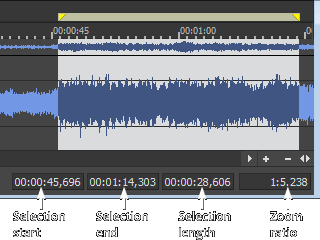
Shows the beginning, end, and length of a selection. If no selection has been made, only the cursor position is displayed:

  • Double-click the Selection Start box to edit the current value. Press Tab or Enter to move the cursor to the new position.

  • Double-click the Selection Start or Selection Length box to edit beginning or ending of the selection. Press Tab or Enter to update the selection.

TIP To update the Selection Start, Selection End, or Selection Length values quickly, you can type + or - and a numeric value. For example, to extend the right end of a selection one second, double-click the Selection End box and type +1. To move the left end of a selection one minute to the left, type -1:00.

  • Right-click to display the Status Format shortcut menu, which allows you to choose a time format.

Time zoomClosed

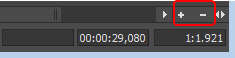
To zoom in and out horizontally by small increments, click the Time Zoom In/Out buttons, or drag the area between the buttons to zoom quickly.

For more information about magnification, please see Magnification and Zooming.

Time zoom resolution Closed

Indicates the number of samples of data represented by each point on the screen horizontally. This determines the length of time shown in the waveform display. With a small resolution value (1:1, 1:2, 1:4, ...), a shorter length of time is displayed.

For more information about magnification, please see Magnification and Zooming.

Maximize width Closed

Click to stretch the width of the data window to fit within the Sound Forge Pro workspace.

TIP Press Ctrl+Enter.

Close data windowClosed

Click the Close button to close a data window.

TIP If you have maximized your data windows, click the Close button in a data window tab to close that data window.